
WINS Management

学员操作笔记Student Playbook

这份笔记是 AI 实战课学员专属。
请输入课堂上公布的通行口令。
This playbook is exclusive to workshop students.
Enter the access code announced in class.

忘了口令?WhatsApp 我们:Forgot the code? WhatsApp us: +60 12-439 2289

WINS Management AI 实战课 · 学员笔记AI Workshop · Playbook
学员专属 · 忘了就回来这里Students only · Come back anytime

你的 AI 超级助理
操作笔记
Your AI Super-Assistant
Playbook

课堂上做过的每一步,这里都有。忘记了、卡住了,打开这页,照着做就行。这份笔记会持续更新——同一个网址,内容越来越丰富。 Every step from class is here. Forgot something? Stuck? Open this page and follow along. This playbook keeps growing — same URL, richer content over time.

📱 手机可看,实操请用电脑Readable on phone; do the steps on a laptop 🔖 建议加入书签Bookmark this page

CH 0

先搞清楚:Claude Code 是什么?First: what is Claude Code?

一句话:它是一个住在你电脑里、能动手做事的 AI 助理。你用打字跟它说话,它帮你读文件、整理资料、做表格、做网页——全程不用你写任何程式码。 In one line: it's an AI assistant that lives on your computer and actually does the work. You talk to it by typing; it reads your files, organises data, builds spreadsheets and web pages — no coding needed from you, ever.

LEVEL 1

Claude 网页版Claude on the web

你问,它答。答完,事情还是你自己做。You ask, it answers. Then you still do the work yourself.

LEVEL 2

Claude Cowork

住进桌面 App,能在指定文件夹里帮你动手。Lives in a desktop app; works hands-on inside chosen folders.

LEVEL 3

Claude Code

直接住进你的电脑,帮你打造自己的 AI 系统——这堂课教的就是它。Lives right in your computer and builds your own AI systems — this is what the workshop taught.
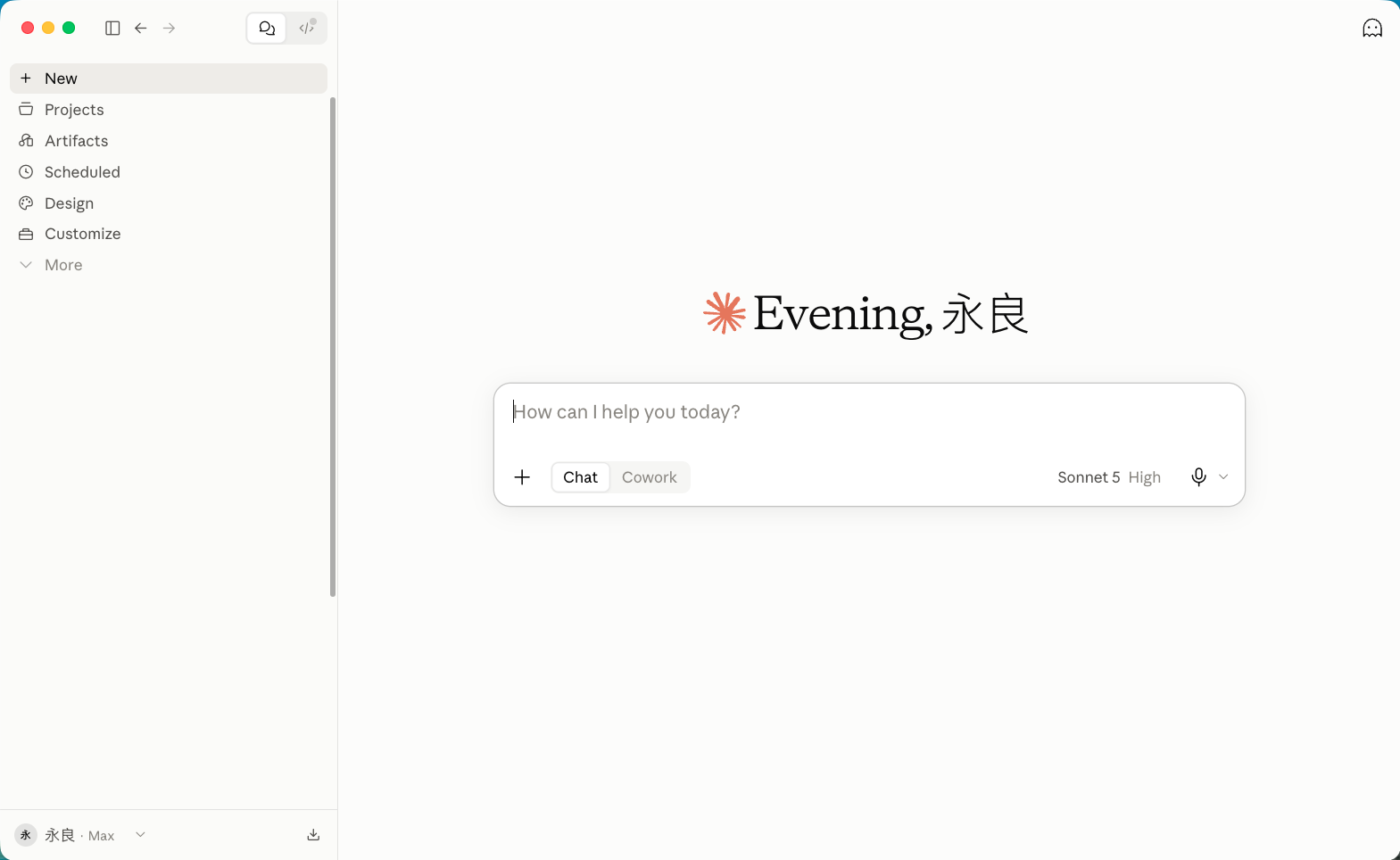
Claude 桌面版 App 打开后的画面
真实画面:Real screenshot: 桌面版 App 打开后长这样——左上角 Home / Code 两个分页,这堂课用的就是 Code。左边 sidebar 就是第 2 章会用到的「接着做」入口。输入框里那排 Chat / Cowork 切换,对应上面 LEVEL 1 / LEVEL 2。what the desktop app looks like when it opens — Home / Code tabs top-left; this course uses Code. The left sidebar is where Chapter 2's "continue a session" lives. The Chat / Cowork toggle inside the prompt box maps to LEVEL 1 / LEVEL 2 above. 图片来源:永良的桌面版 App 截图(2026-09-21)Source: 永良's own desktop app screenshot (2026-09-21)
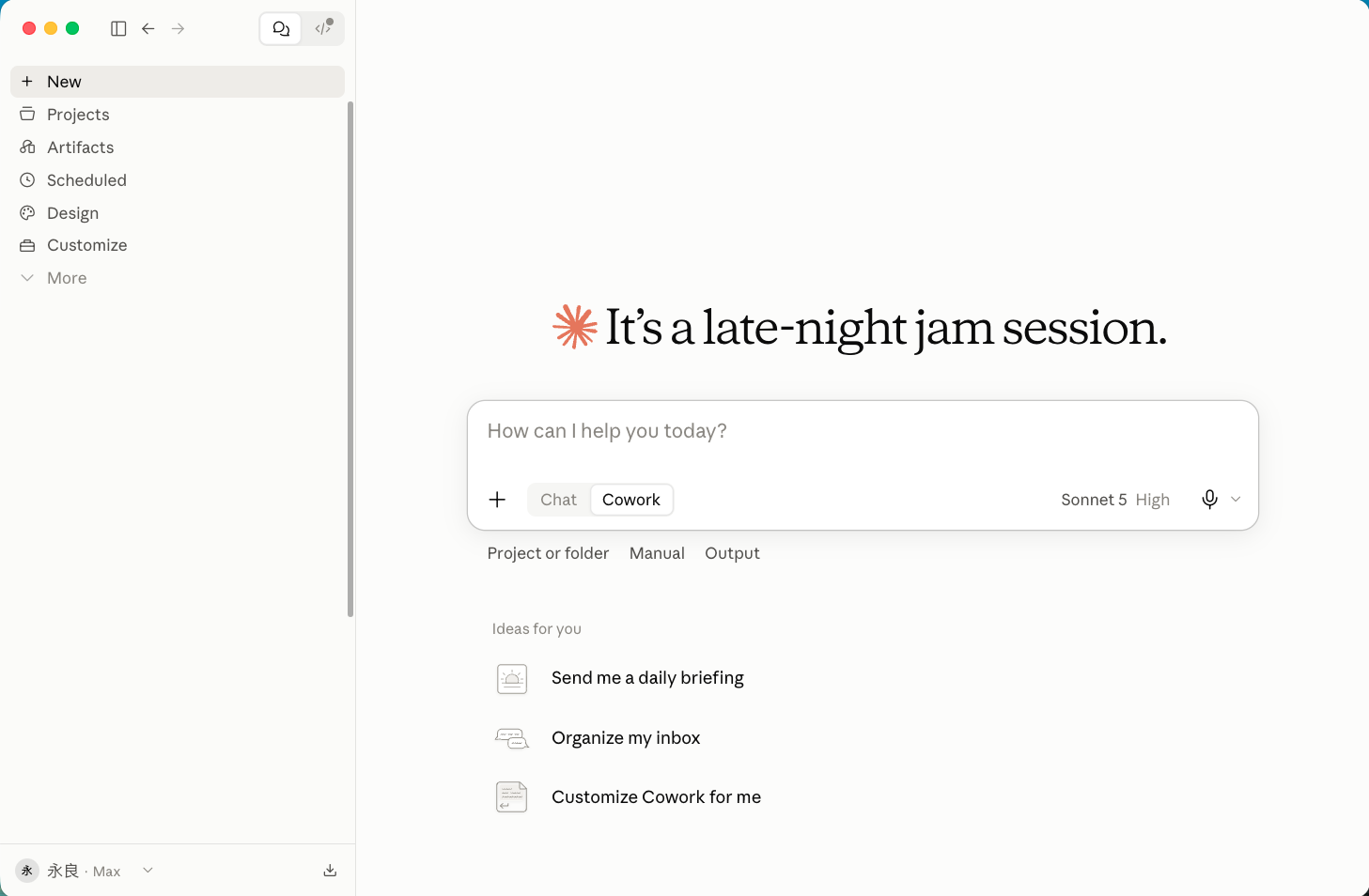
切到 Cowork 模式的画面
真实画面:Real screenshot: 同一个输入框,点一下切到 Cowork(LEVEL 2)——多了「选文件夹」和 Manual/Auto 权限模式,还能排定时任务(Scheduled,见下面 Weekly command dashboard check 那两条)。the same prompt box, one click switches to Cowork (LEVEL 2) — adds a folder picker and a Manual/Auto permission mode, plus scheduled tasks (see the two "Weekly…" entries below). 图片来源:永良的桌面版 App 截图(2026-09-21)Source: 永良's own desktop app screenshot (2026-09-21)

🚀 不是空谈——这些都是永良自己用它做出来的,全部真实上线中,点开就能看: 🚀 Not just talk — 永良 built every one of these with it himself. All live right now, click through and see:

WINS Leads · WhatsApp 询盘管理系统WINS Leads · WhatsApp Lead Inbox
把 WhatsApp 询盘整理成一个干净的收件箱——跟进提醒、安全群发、销售看板,专为单枪匹马做销售的人设计。这是一个真正在收费的产品,从零到上线全部用 Claude Code 打造。A clean inbox for WhatsApp leads — follow-up reminders, safe batch messaging, a sales dashboard, built for solo sellers. A real paid product, built from zero to launch entirely with Claude Code.
🟢 收费产品🟢 Paid product
她优势 She-Strengths · 女性天赋优势测评She-Strengths · Women's Strengths Assessment
24 题、约 3 分钟测出你的天赋原型和优势排行,免费开始,想看完整报告才付费解锁;还能开团让整个女性创业团队一起测,看清彼此的搭配与缺口。A 24-question, ~3-minute quiz that maps your strengths archetype — free to take, pay only to unlock the full report; also supports team mode so a founder can see her whole team's fit and gaps.
🟢 收费产品🟢 Paid product
卡内基核心原则 · 60 条金科玉律Dale Carnegie · 60 Core Principles
《卡内基沟通与人际关系》精华整理成卡片,用职场管理视角逐条拆解 WHY & HOW。Dale Carnegie's principles distilled into cards, each broken down WHY & HOW through a workplace-management lens.
🟢 知识资产网页🟢 Knowledge asset
AI 订阅回报模拟器AI Subscription ROI Simulator
30 秒算清楚:你的一小时值多少钱、订阅 AI 工具划不划算——第 3 章场景 09「做内部小工具」,说的就是这种东西。Work out in 30 seconds whether an AI subscription pays for itself — exactly the kind of internal tool from Chapter 3, Scenario 09.
🟢 免费小工具🟢 Free tool
真数据版图Malaysia Data Map
马来西亚连锁、教育、房产的真实数据叠在地图上——决策之前,先看真数据。Chain-store, education and property data layered onto a map of Malaysia — see the real picture before you decide.
🟢 数据洞察工具🟢 Data insight tool
五金钢铁行定价引擎Hardware-Trade Pricing Engine
同一支方管,五个客户五个价——AI 读懂 AutoCount 历史单据反推定价规则,钢价一动,全表自动重算。Same steel pipe, five different prices for five customers — it reverse-engineers pricing rules from AutoCount history, and recalculates the whole table the moment steel prices move.
🟢 客户真实项目🟢 Real client project
💡 
这份笔记怎么用:第一次看,从第 1 章开始照做。之后忘了什么,直接点上面的章节导航跳过去。每个「💬 跟它说」旁边都有复制按钮——复制、贴进 Claude Code、按 Enter,就这么简单。 How to use this playbook: first time, start from Chapter 1 and follow along. Later, jump straight to any chapter from the navigation above. Every "💬 Say this" box has a copy button — copy, paste into Claude Code, press Enter. That's it.
CH 1

第一次设定(只需要做一次)First-time setup (do this once)

三步:订阅 → 下载桌面版 App → 打开 Code 分页说第一句话。全部做完大约 10 分钟,全程不用碰任何黑底窗口。做过一次,以后每天打开就能用。(想用终端机的进阶玩法收在本章最后。) Three steps: subscribe → download the desktop app → open the Code tab and say your first words. About 10 minutes total, and you never touch a black terminal window. Do it once, and it's ready every day after. (The terminal path for advanced users is tucked at the end of this chapter.)

1

订阅 Claude ProSubscribe to Claude Pro

Claude Code 至少要订 Pro 方案才用得到——免费版没有这个功能。先订 Pro 就够用了,每月 $20 起;之后如果额度常常不够用,再升级 Max($100/月起)也不迟,不用一开始就订最贵的。 Claude Code needs at least the Pro plan — the free plan doesn't include it. Start with Pro — it's enough to begin with, from USD $20/month; if you find yourself running out of usage often, upgrade to Max (from USD $100/month) later. No need to start on the most expensive plan.
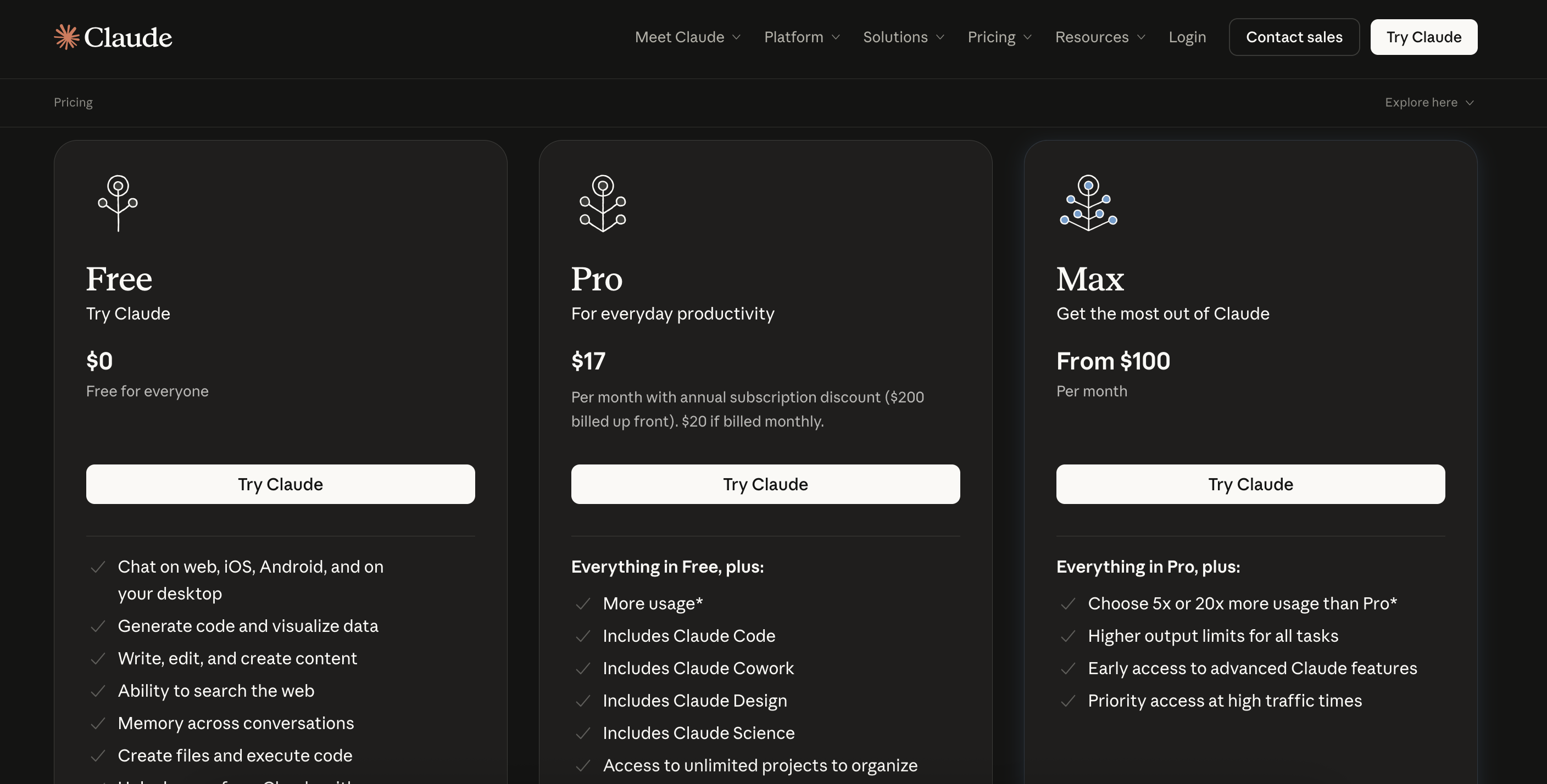
claude.com 官方订阅方案页
真实画面:Real screenshot: claude.com/pricing 官方订阅页——三个方案:Free($0,没有 Claude Code)、Pro($17-20/月,含 Claude Code)、Max($100/月起,用量更大)。选中间那个 Pro 就对了。claude.com/pricing's official plans — three tiers: Free ($0, no Claude Code), Pro ($17-20/month, includes Claude Code), Max (from $100/month, more usage). Pick the middle one, Pro. 图片来源:永良的 claude.com 官网截图(2026-08-10)Source: 永良's own screenshot of claude.com (2026-08-10)
照着做DO THIS
先看 claude.com/pricing 比较方案,选 Pro 就对了Check claude.com/pricing to compare plans, then pick Pro
打开 claude.ai/upgrade,选 Pro 方案Open claude.ai/upgrade and pick the Pro plan
用 Google 账号或 Email 注册/登录,付款Sign up / log in with Google or email, then pay
记住这组账号——等下登录 App 要用同一个Remember this account — you'll use the same one to sign in to the app
2

下载安装 Claude 桌面版 AppDownload and install the Claude desktop app

先选你的电脑系统,点下面的按钮下载——跟装其他任何一个 App 一样,双击、拖一下、打开,就这么简单。 Pick your computer type, then click the button to download — installing this is just like any other app: double-click, drag, open.
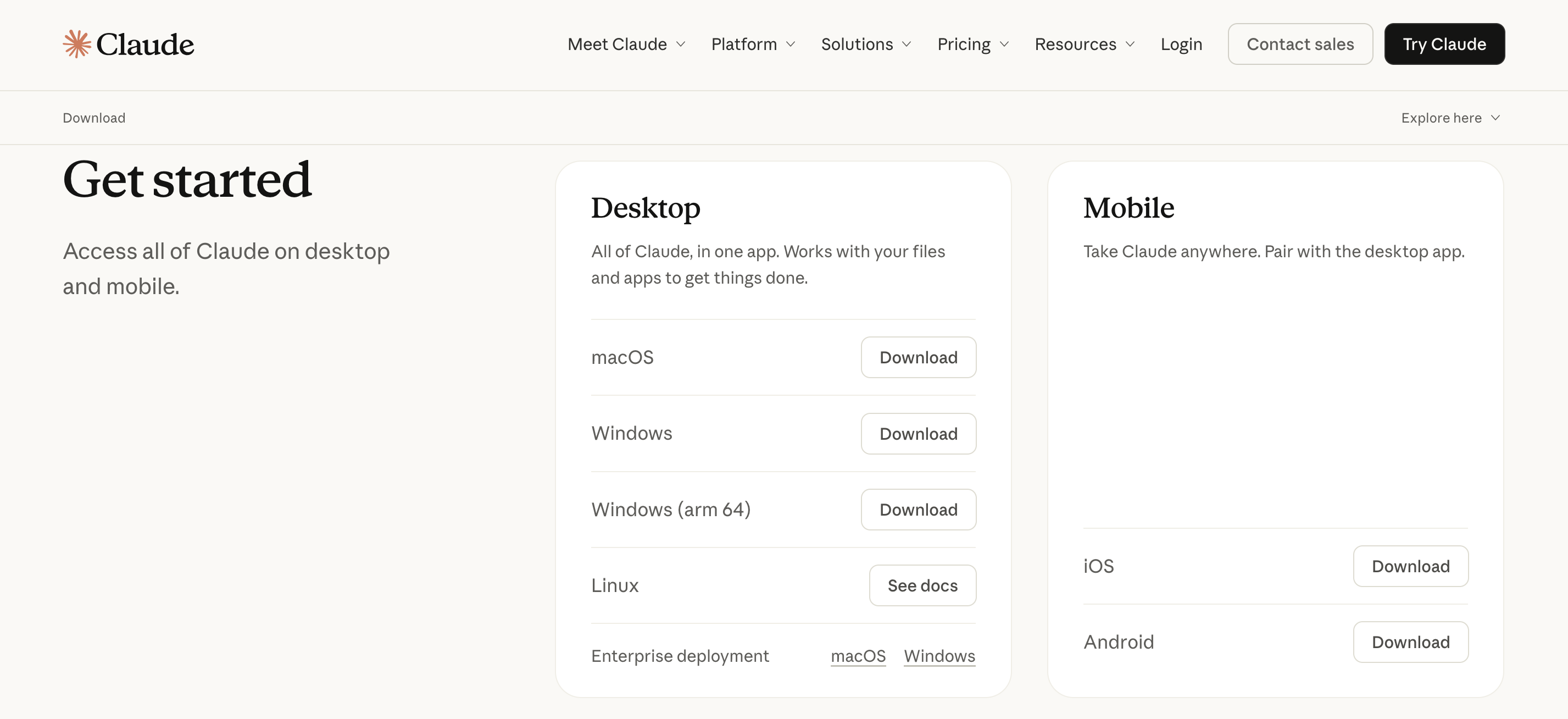
claude.ai 官方下载页
真实画面:Real screenshot: claude.ai 官方的下载页长这样——除了 Mac / Windows,也有 Linux 和手机版 iOS / Android。下面这两个按钮已经帮你连到对应的 Mac / Windows 安装档,不用自己上网找;想在手机上也装一个、或用的是 Linux,照这张图上对应的按钮点就行。what claude.ai's official download page looks like — besides Mac / Windows, there's also Linux and mobile iOS / Android. The two buttons below already link straight to the matching Mac / Windows installer, no need to go find it yourself; want it on your phone too, or run Linux? Just click the matching button shown here. 图片来源:永良的 claude.ai 官网截图(2026-08-10)Source: 永良's own screenshot of claude.ai (2026-08-10)
下载 Mac 版Download for Mac

通用版,Intel 和 Apple Silicon(M 系列)的 Mac 都能装Universal build — works on both Intel and Apple Silicon Macs

① 打开下载好的安装包① Open the downloaded installer

双击下载的文件,把 Claude 图标拖进「Applications 应用程序」文件夹——跟装其他 Mac App 完全一样。Double-click the downloaded file, drag the Claude icon into the "Applications" folder — exactly like installing any other Mac app.

② 打开它,登录② Open it and sign in

用 Launchpad 或 ⌘ + 空格键 搜 Claude,点开,用刚才订阅 Pro 的那组账号登录。Search Claude in Launchpad or with ⌘ + Space, open it, and sign in with the account you just subscribed Pro on.

⚠️ 
第一次在文件夹里工作时,如果跳出一个系统窗口说「"git" 需要 command line developer tools」,这是正常的、只需要做一次:点 Install,等 2-5 分钟(正在下载,大概 1GB,别关掉它),装完就没事了,以后都不会再跳出来。The first time you work inside a folder, if a system popup says "'git' requires the command line developer tools", that's normal, one-time only: click Install and wait 2-5 minutes (it's downloading, about 1GB — don't close it). Once it's done, it never asks again.
下载 Windows 版Download for Windows

适用大多数电脑;用 ARM 芯片电脑(少见)的话,官网会自动帮你换成对的安装包Works on most PCs; ARM-chip machines (rare) get the right installer automatically from the site

① 打开下载好的安装包① Open the downloaded installer

双击下载的文件,一路点「下一步 Next」到完成。Double-click the downloaded file and click "Next" all the way through.

② 打开它,登录② Open it and sign in

在开始菜单搜 Claude,点开,用刚才订阅 Pro 的那组账号登录。Search Claude in the Start menu, open it, and sign in with the account you just subscribed Pro on.

⚠️ 
第一次点「Code」分页时,如果它提示要装 Git,这是正常的、只需要做一次:点 这里下载 Git for Windows,一路 Next 装完,然后把整个 Claude App 关掉重开一次(不是关视窗,是整个 App)。想看影片教学?2 分钟教你在 Windows 装 Git →The first time you click the "Code" tab, it may ask you to install Git — that's normal, one-time only: download Git for Windows here, click Next all the way, then fully quit and reopen the Claude app (not just the window). Prefer a video? 2-min walkthrough of installing Git on Windows →
🧰 
之后干活时,它有时会说要装一个工具才能继续(画面上可能出现 brew、npm 这类字眼)——这是 Claude Code 自己在装它做事要用的小工具,不是要你自己去装。看到跳出来问,按 Yes / Allow 就好。第一次遇到可能要等 1-2 分钟,装好以后同样的工具不会再问第二次。Later, while it's working, it may say it needs to install a tool before continuing (you might see words like brew or npm on screen) — that's Claude Code installing its own helper tools, not something you have to go install yourself. When it asks, just click Yes / Allow. The first time might take a minute or two; it won't ask again for the same tool.
3

打开「Code」分页,选一个文件夹Open the "Code" tab and pick a folder

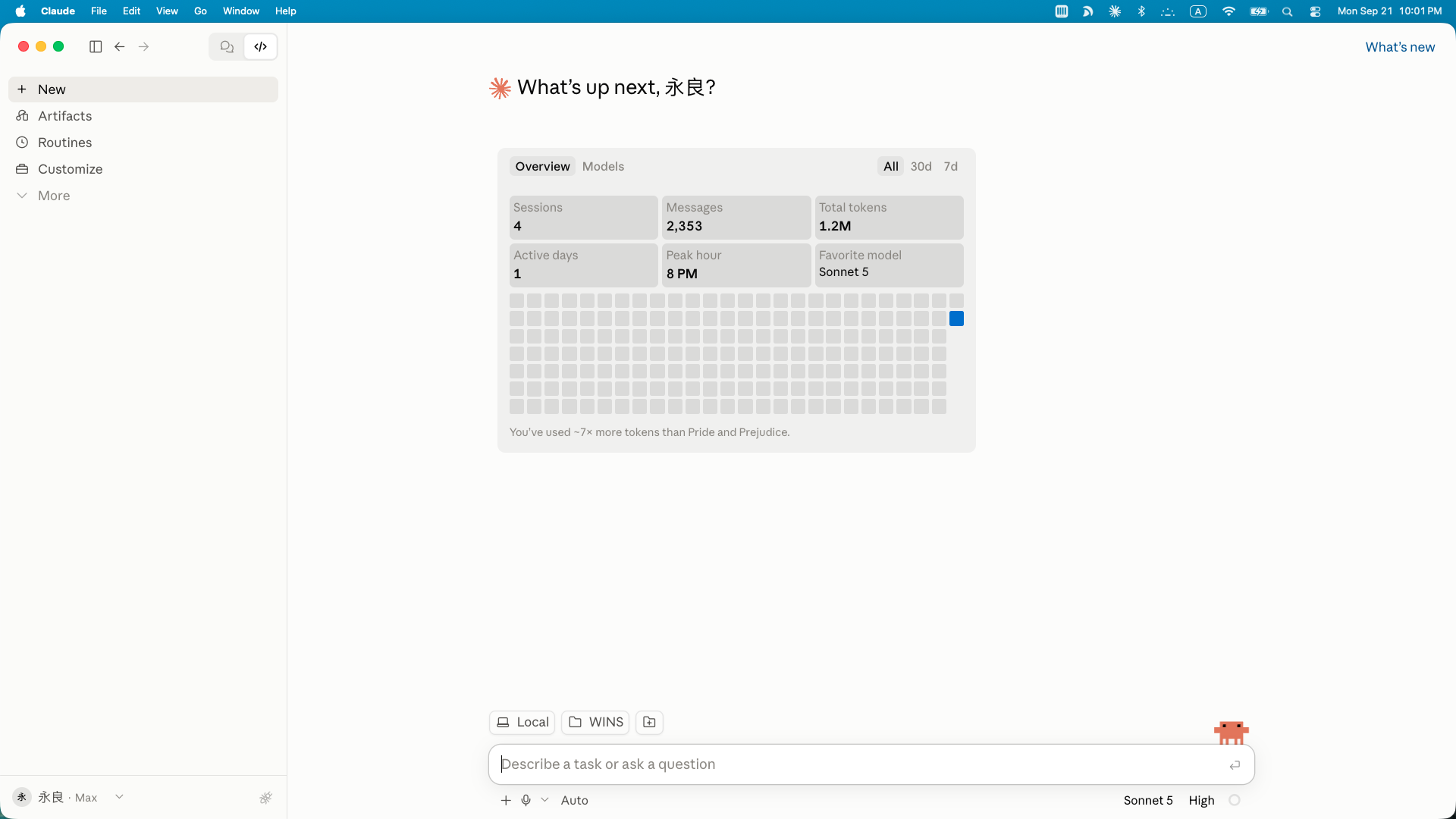
登录后,顶部会看到几个分页,点 Code(如果它提示你「升级」,代表 Pro 还没订好,回上一步)。 Once signed in, you'll see a few tabs at the top — click Code (if it asks you to "upgrade", your Pro subscription hasn't gone through yet — go back a step).
照着做DO THIS
选 Local(在你自己电脑上跑,最常用的模式)Choose Local (runs on your own computer — the mode you'll use most)
点 Select folder 选择文件夹,随便选一个你熟悉的小文件夹练手——桌面新建一个空文件夹、取名「AI 测试」也行Click Select folder and pick any small folder you know well to practise on — a new empty "AI Test" folder on your Desktop works fine
Code 分页的画面
真实画面:Real screenshot: 点开 Code 分页会看到的画面——用过一阵子后,上面是用量小仪表盘;重点看下面那一条:Local 旁边那个文件夹名字,就是你选好文件夹之后显示的地方。第一次用、还没选文件夹时,点这里会跳出你电脑原生的「选取文件夹」窗口,就跟你平常存文件时看到的一样。what the Code tab looks like — once you've used it a while, a usage dashboard shows up top; the important part is the bar below it: the folder name next to Local is where your chosen folder shows up. The first time, before you've picked one, clicking there opens your computer's normal folder-picker window — the same one you already know from saving any file. 图片来源:永良的桌面版 App 截图(2026-09-21)Source: 永良's own desktop app screenshot (2026-09-21)
📌 
这个「选文件夹」的画面就是它以前要打字 cd 才能做的事——现在用点的,不用打任何指令。This "select folder" screen is exactly what used to require typing cd — now it's a click, no commands needed.
4

说第一句话,确认它活着Say your first words — confirm it's alive

在下面的输入框直接用中文打这句,按 Enter(它完全听得懂中文):Type this right into the prompt box below and press Enter (it understands plain language):

💬 跟它说Say this
你好!请介绍一下你自己,再帮我看看这个文件夹里有什么,用中文列出来。Hello! Please introduce yourself, then take a look at what's in this folder and list it out for me.
它会IT WILL
用中文自我介绍,并列出这个文件夹里的东西——这一步是「读」,不会跳出确认框Introduce itself in Chinese and list what's in the folder — this is a "read", so no approval prompt appears
看到它回答 = 一切就绪 🎉 你已经有一个住在电脑里的 AI 助理了If it replies = all set 🎉 You now have an AI assistant living in your computer

🔗 
想看更详细的官方步骤?Anthropic 官方文档:桌面版 App 快速开始(官方)——装不上、想深入,以官方为准。 Want the full official steps? Anthropic's official docs: Get started with the desktop app — when in doubt, the official docs are the source of truth.
⌨️ 进阶:想用终端机(Terminal)安装?⌨️ Advanced: install via Terminal instead?

桌面版 App 背后跑的就是同一套引擎,两者可以同时装、同时用,设定互通(CLAUDE.md、权限规则都共用)。什么时候才需要终端机?——想设定「24 小时无人值守自动跑」(例如每天固定时间自动更新看板)这类纯后台排程的进阶玩法。日常使用桌面版 App 就够了,这段可以先跳过,需要时再回来看。 The desktop app runs the exact same engine underneath — you can install both, run them side by side, and they share settings (CLAUDE.md, permission rules, all of it). When do you actually need the terminal? Mainly for "24/7 unattended background" setups (e.g. auto-refreshing a dashboard on a fixed daily schedule) — pure background scheduling. For everyday use, the desktop app is enough; skip this and come back if you ever need it.

(沿用你在上一步选的 Mac / Windows。)(Uses the Mac / Windows choice you made in the step above.)

① 打开「终端机 Terminal」① Open "Terminal"

按 ⌘ + 空格键 打开搜索,输入 Terminal,按 Enter。Press ⌘ + Space, type Terminal, press Enter.

② 复制下面这行,贴进终端,按 Enter② Copy the line below, paste into Terminal, press Enter

Terminal
curl -fsSL https://claude.ai/install.sh | bash

跑一两分钟,看到类似「Installation complete」就是装好了。装完把终端整个关掉重开,打 claude --version 确认。Takes a minute or two; "Installation complete" means you're done. Afterwards, fully close and reopen the terminal, then run claude --version to confirm.

① 打开「PowerShell」(注意:不是 CMD!)① Open "PowerShell" (note: NOT CMD!)

按 ⊞ Win 键,输入 PowerShell,按 Enter。窗口左边开头显示 PS 才是对的。Press the ⊞ Win key, type PowerShell, press Enter. The prompt should start with PS.

② 复制下面这行,贴进 PowerShell,按 Enter② Copy the line below, paste into PowerShell, press Enter

PowerShell
PS C:\> irm https://claude.ai/install.ps1 | iex
⚠️ 
最常见的坑:如果报错 “'irm' is not recognized”,代表你开的是 CMD 不是 PowerShell。关掉,重新搜 PowerShell 打开。Most common trap: "'irm' is not recognized" means you opened CMD, not PowerShell. Close it and search for PowerShell again.

装完把 PowerShell 整个关掉重开,打 claude --version 确认。Afterwards, fully close and reopen PowerShell, then run claude --version to confirm.

首次启动打 claude,选 Claude account with subscription 登录,浏览器会跳出来让你确认——跟桌面版用同一组账号即可,两边设定共通。On first launch, type claude, choose Claude account with subscription, and confirm in the browser that pops up — use the same account as the desktop app; settings are shared.

想先手动把 Git / Homebrew 装好(可选,Mac 专属)Want to pre-install Git / Homebrew yourself? (optional, Mac only)

不装也没关系——第一次用到时它自己会跳出系统窗口引导你装(见上面第 1 章第 2 步的提醒)。想提前弄好,或者卡住了想自己修,照下面两步做:Skipping this is fine — the system prompts you to install when it's first needed (see the note in Chapter 1, Step 2 above). If you'd rather get it out of the way, or you're stuck and want to fix it yourself, do these two:

① 装 Git(其实是装「command line developer tools」)① Install Git (really: the command line developer tools)

Terminal
git --version

跳出「需要 command line developer tools」的窗口 → 点 Install → 等 2-5 分钟。跳出一串版本号(例如 git version 2.x.x)就是已经装好了,不用再装一次。A popup asks for the command line developer tools → click Install → wait 2-5 minutes. A version number (like git version 2.x.x) means it's already installed — nothing more to do.

② 装 Homebrew(Mac 上最常用的软件安装工具)② Install Homebrew (the most common package manager on Mac)

Terminal
/bin/bash -c "$(curl -fsSL https://raw.githubusercontent.com/Homebrew/install/HEAD/install.sh)"

跑 3-5 分钟,中途可能要你输入开机密码(打字不会显示星号,正常,打完按 Enter)。跑完终端会提示你再跑两行「Next steps」指令,照着复制贴上就好。Takes 3-5 minutes; it may ask for your login password partway through (nothing shows as you type — that's normal, just press Enter after). When it finishes, the terminal shows two "Next steps" lines — copy and paste those too.

💡 
Windows 没有 Homebrew 这个东西——第 1 章第 2 步的 Git for Windows 就够了,这两步跳过。Windows doesn't have Homebrew — Git for Windows from Chapter 1, Step 2 is all you need; skip these two steps.

🎁 请大家也顺手装这个:Typeless(语音打字神器)🎁 Please also install this: Typeless (voice-to-text that's actually smart)

跟 Claude Code 特别配——第 3 章场景 04「整理 SOP」、场景 11「理清脑中思绪」这些要「讲给它听」的地方,对着 Typeless 讲,讲完自动变成整理好的文字,比自己打字快很多,也比手机内建语音输入干净(不会留一堆「嗯」「啊」要自己删)。 Pairs especially well with Claude Code — for the "talk it through" moments in Chapter 3 (Scenario 04, turning a walkthrough into an SOP; Scenario 11, untangling your thoughts), just speak into Typeless and get clean, structured text back. Much faster than typing, and far cleaner than your phone's built-in dictation (no "um"s and "uh"s to clean up yourself).
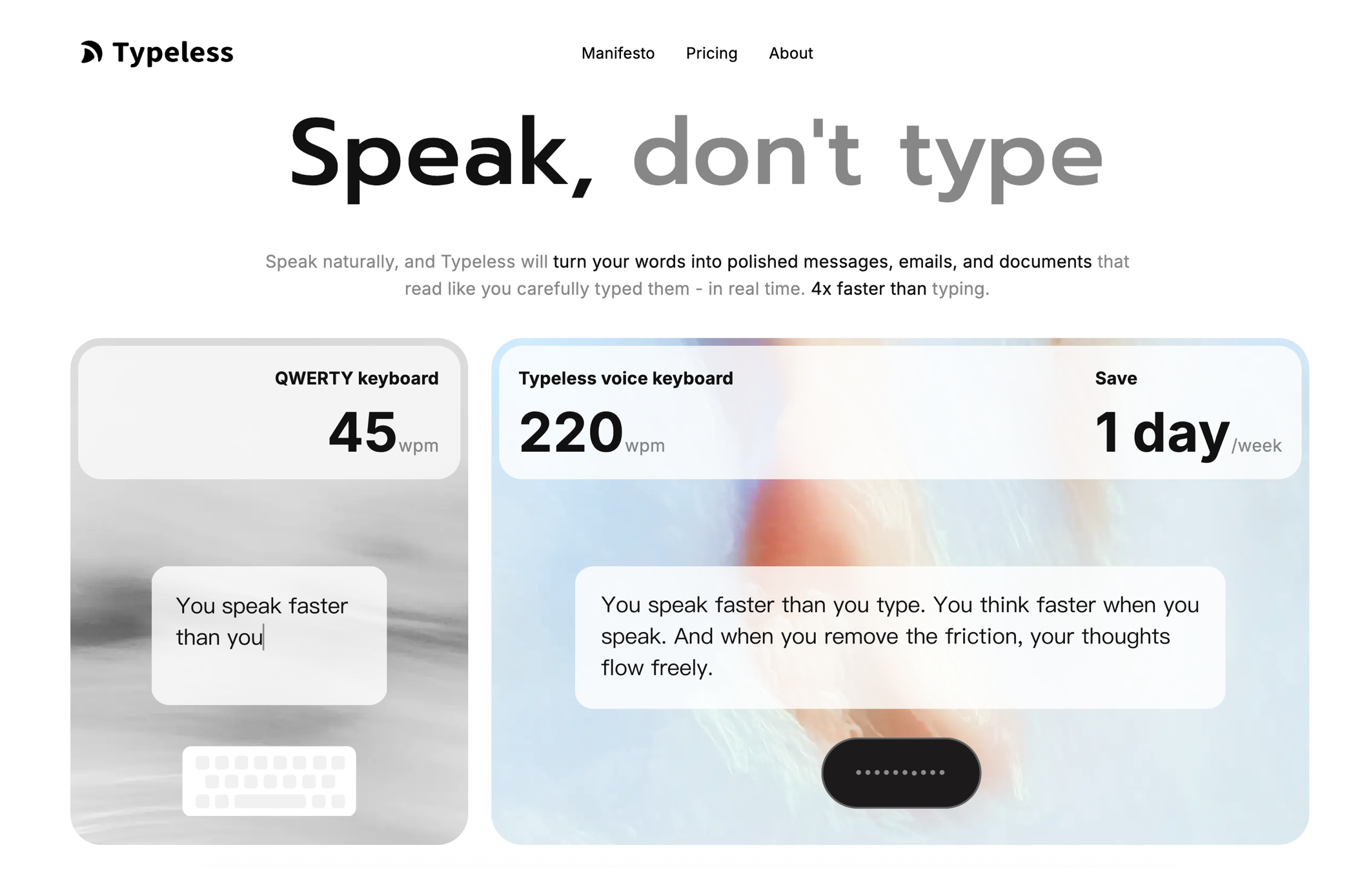
Typeless 官网截图
真实画面:Real screenshot: Typeless 官网首页——「说话,不用打字」,讲话平均 220 字/分钟,比打字(45 字/分钟)快 4 倍,一星期能省下差不多一天。Typeless's homepage — "Speak, don't type": talking averages 220 words/min, 4x faster than typing (45 wpm), saving roughly a day a week. 图片来源:永良的官网截图(2026-08-10)Source: 永良's own screenshot of the Typeless site (2026-08-10)
它比手机内建语音输入强在WHAT MAKES IT BETTER THAN BUILT-IN DICTATION
自动去掉「呃」「那个」这些语气词和重复的话,讲话不用刻意组织语言auto-removes filler words ("um", "uh") and repeated phrases — no need to carefully plan what you say
讲错了改口,它自动只留你最后想讲的版本,不会留下一堆废话correct yourself mid-sentence and it keeps only your final intended message, not the clutter
讲步骤、讲列点,自动帮你整理成一条一条的格式,不用自己排版speak a list or steps and it auto-formats them into clean structure — no manual formatting
支持 100 多种语言,中英文夹着讲也听得懂supports 100+ languages, understands mixed Chinese-English speech
Mac、Windows、手机(iOS / Android)全平台能用,走到哪讲到哪works on Mac, Windows, and mobile (iOS/Android) — dictate wherever you are
下载安装 TypelessDownload & Install Typeless

免费下载,Mac / Windows / iOS / Android 都有。Free to download, available on Mac / Windows / iOS / Android.

CH 2

每天怎么开始用How to start it every day

以后每天就两个动作:打开 App,点 Code 分页 → 在左边 sidebar 点一下要接着做的对话,或开一个新的。10 秒钟,助理就位。 From now on, it's two moves every day: open the app, click the Code tab → click a conversation in the sidebar to continue it, or start a new one. Ten seconds and your assistant is on duty.

1

打开 App,点 Code 分页Open the app, click Code

跟打开任何一个 App 一样:Mac 从 Launchpad / Dock,Windows 从开始菜单。登录长期有效,不用每次重新登。Just like opening any other app: Launchpad/Dock on Mac, Start menu on Windows. You stay signed in — no need to log in again each time.

2

接着做,或开新的Continue, or start fresh

接着昨天的话题:左边 sidebar 列着所有对话,点你要接的那个,历史记录都在,直接接着说。Pick up yesterday's topic: the sidebar lists every conversation — click the one you want, history and all, and keep going.

开一件新的事:点 sidebar 的 + New session(快捷键 Mac ⌘N / Windows Ctrl+N),选 Local,选文件夹——跟第 1 章第 3 步一样。Something new: click + New session in the sidebar (shortcut: ⌘N on Mac / Ctrl+N on Windows), choose Local, pick a folder — same as Chapter 1, Step 3.

🗂️ 
每个对话(session)自己记自己的文件夹和历史,互不干扰——同时开好几个也不会串话,sidebar 随时切换查看。Each conversation (session) tracks its own folder and history independently — run several at once without them mixing up; switch between them anytime from the sidebar.

⚡ 常用操作速查卡(就这 8 条,够用了)⚡ Quick reference — these 8 are all you need

你要做什么What you want怎么做How
接着上一次的对话继续Continue the last conversation在左边 sidebar 点那个对话Click it in the sidebar
开一个全新话题Start a fresh topic点 + New sessionClick + New session
看看有哪些命令/技能可以用See available commands/skills输入框打 /Type / in the prompt box
它讲到一半,想打断它Interrupt it mid-reply点输入框旁的停止按钮;或直接打字送出新指示,不用等它讲完Click the stop button; or just type a correction and send — no need to wait
把文件给它看Show it a file打 @文件名,或直接拖进对话框,图片/PDF 也行Type @filename, or drag it straight into the chat — images and PDFs work too
它准备要改文件、跑指令It's about to edit a file or run a command会先弹出 diff 预览,看清楚后点 Accept 或 RejectA diff preview pops up first — review it, then click Accept or Reject
想同时处理另一件事,不打断现在这个Handle something else without stopping this one点 + New session 开一个新对话,两个并行跑Click + New session to run another in parallel
下班——不用管它Clock out — nothing to do直接关掉视窗就行,对话都存着,明天回来接着上Just close the window — everything's saved; pick up where you left off tomorrow
💡 
最重要的一条心法:不用背操作。想要什么,用大白话直接跟它讲——「帮我看看这个文件夹里有什么」「刚才那份表格再加一栏」。它听得懂,不懂它会问你。The one rule that matters: you don't memorise commands. Just say what you want in plain words — "show me what's in this folder", "add one more column to that table". It understands; if not, it asks.
CH 3

11 个应用场景,照着做就上手11 scenarios — just follow along

每个场景四步:准备什么 → 跟它说什么(可一键复制)→ 它会做什么 → 你要做什么。指令里的数字、文件名,换成你自己的就行。 Each scenario has four steps: prepare → say this (one-click copy) → it will → you then. Swap the numbers and file names for your own.
(每条标的省时是课堂上的平均估算,实际看你资料的整齐程度——越乱的资料,省得越多。)(The time savings shown are class averages; your mileage depends on how tidy your data is — the messier it is, the more you save.)

01

好几份报表,每次都要手动汇总成一张总表Merging several reports into one master sheet by hand

⏱ 每次省约 1.5 小时~1.5 h saved each time

业绩、库存、订单分别记在不同表格,月底要自己一格格复制贴上,还常常贴漏、贴错行。Sales, stock and orders live in separate spreadsheets; every month-end you copy-paste cell by cell — and mispaste.

准备PREPARE
把要汇总的几份表格(Excel / Google Sheet 下载档)丢进同一个文件夹,在那个文件夹启动 Claude Code。Put the spreadsheets (Excel / downloaded Google Sheets) into one folder, and start Claude Code in that folder.
💬 跟它说Say this
把这个文件夹里的 3 份报表汇总成一份总表,按日期排序,帮我加总每月业绩。Merge the 3 reports in this folder into one master sheet, sort by date, and total the monthly sales for me.
它会IT WILL
自动读取每份文件、抓出需要的栏位,生成一份新的汇总表。第一次跑可能会问「要不要装一个小工具」——按 Yes 就好,那是它拿来读 Excel 用的。Read every file, pull the right columns, and generate a new merged sheet. The first run may ask to install a small helper — say Yes; that's what it uses to read Excel files.
你要做的YOU THEN
检查数字对不对;想调整格式,直接说一句就改。之后每次汇总,重复同一句指令就行。Check the numbers; ask for any format tweaks in one sentence. Next month, repeat the same instruction.
02

客户资料散落在 Excel、PDF、WhatsApp 截图Client info scattered across Excel, PDFs and WhatsApp screenshots

⏱ 每次省约 1 小时~1 h saved each time

想找一个客户的完整记录,要翻好几个地方,浪费时间还常常漏资料。Finding one client's full record means digging through several places — slow, and things get missed.

准备PREPARE
把相关文件(订单 Excel、PDF 发票、聊天截图)放进一个文件夹。Put the related files (order Excels, PDF invoices, chat screenshots) into one folder.
💬 跟它说Say this
把这个文件夹里所有客户资料整理成一份表格,按客户名字分类,标出成交日期和金额。Organise all the client info in this folder into one table, grouped by client name, with deal dates and amounts marked.
它会IT WILL
逐一读取文件(包括图片、PDF),抓出关键信息,整理成结构化表格。Read each file (including images and PDFs), extract the key info, and build a structured table.
你要做的YOU THEN
核对几笔关键数据。之后新增资料,只要丢进同一个文件夹重跑一次就好。Spot-check a few key entries. New info later? Drop it in the same folder and run it again.
🧾 
同样的方法可以拿来整理收据:把收据的照片或 PDF 丢进文件夹,跟它说「帮我认出每张收据的商家、日期、金额,改成看得懂的档名,整理进一份 Google Sheets,做完寄一份到我的信箱」——报税、请款要用的时候,直接翻表格就好,不用再从一堆纸本、照片里面找。The same method works for receipts: drop receipt photos or PDFs into a folder and say "identify the vendor, date and amount on each receipt, rename the files clearly, organise them into a Google Sheet, and email me a copy" — for tax season or expense claims, everything's in one table instead of a pile of paper and photos.
03

报价单 / 发票手动打字,容易打错、格式不统一Typing quotations / invoices by hand — typos and messy formats

⏱ 每次省约 45 分钟~45 min saved each time

同样的模板每次都要重新填、重新算,一忙起来容易算错、漏项。Same template, refilled and recalculated every time — easy to get wrong when you're busy.

准备PREPARE
给它一份报价单模板,加一份客户 / 产品清单。Give it one quotation template plus a client / product list.
💬 跟它说Say this
用这份模板,帮我批量生成这 10 位客户的报价单,金额从这份清单读取。Using this template, batch-generate quotations for these 10 clients, taking the amounts from this list.
它会IT WILL
照模板批量生成,自动计算总额、税金,输出成 PDF。第一次跑可能会问「要不要装一个小工具」——按 Yes 就好,那是它拿来出 PDF 用的。Generate them all from the template, auto-calculating totals and tax, and output PDFs. The first run may ask to install a small helper — say Yes; that's what it uses to produce PDFs.
你要做的YOU THEN
抽查 1-2 份对不对。下次换一批客户名单,重复同一句指令就能用。Spot-check one or two. Next batch of clients, same instruction again.
04

操作流程只在老板脑子里,新人来了要重教一遍Processes live only in your head — every new hire gets retaught

⏱ 一次做好,不再重复教Do it once, stop re-teaching

老板不在,事情就卡住;新人问题一直重复问,没人有空写文档。When you're away, work stalls; new hires ask the same questions, and nobody has time to write it down.

准备PREPARE
打开手机备忘录(或 Google Docs)按语音输入,把你平常怎么做这件事讲一遍变成文字,存成文件丢进文件夹。别直接丢录音档——它听不懂音频。Open your phone's Notes app (or Google Docs), use voice typing to talk through how you normally do it, and save it as a text file in the folder. Don't drop in a raw audio file — it can't listen to audio.
💬 跟它说Say this
我刚讲的这段,帮我整理成一份有步骤、有重点标注的 SOP 文件。Turn what I just explained into an SOP document with clear steps and highlighted key points.
它会IT WILL
把口语内容整理成结构化步骤文件,甚至能做成网页版检查清单,员工照着打勾。Turn your spoken words into a structured step-by-step document — even a web checklist your staff can tick through.
你要做的YOU THEN
过目补充细节。之后流程有变,直接说哪里要改就好。Review and add details. When the process changes, just tell it what to update.
05

老板看板要手动更新各种数据,费时又容易漏Updating your dashboard by hand — slow and easily missed

⏱ 每天省约 20 分钟~20 min saved daily

想每天一眼看懂业绩、现金流,但数据分散在不同系统,手动汇整常常拖到没更新。You want sales and cash flow at a glance, but the data is scattered — so the manual update keeps slipping.

准备PREPARE
把每天 / 每周要看的数据来源(Excel、系统导出的 CSV)放进固定文件夹。Put your daily / weekly data sources (Excels, CSV exports) into one fixed folder.
💬 跟它说Say this
帮我做一个老板看板,把这些数据自动整理成一张一眼能看懂的总表,标红超标的项目。Build me a boss dashboard: turn these files into one at-a-glance summary, and flag anything over its limit in red.
它会IT WILL
读取数据、计算关键指标,生成一份看板;之后每次更新只要一句话。Read the data, compute key metrics, and generate a dashboard; after that, updating takes one sentence.
你要做的YOU THEN
设定好之后,每次就两步:把新数据丢进「数据」文件夹 → 打开 Claude Code 说「更新看板」。完整搭建步骤看第 4 章 ↓Once set up it's two steps: drop new data into the "data" folder → open Claude Code and say "update the dashboard". Full build steps in Chapter 4 ↓
06

文件命名混乱,找一份文件要找半天Messy file names — finding anything takes forever

⏱ 一次整理,不再找半天Tidy once, stop hunting

文件越积越多,命名各种版本「final」「final2」「真的final」,找文件比做事还花时间。Files pile up as "final", "final2", "REAL final" — you spend more time finding than doing.

准备PREPARE
先做这两件事,再开始:① 复制一份备份——右键那个文件夹 → 拷贝/复制,粘一份放旁边,命名「XXX-备份」。② 先拿一个小文件夹练手(20~30 个文件那种),别一上来就整理整个桌面。确认它整理得合你意,再放它去动大的。Do these two things first:① make a backup copy — right-click the folder → Copy, paste a duplicate beside it named "XXX-backup".② practise on a small folder first (20–30 files), not your entire Desktop.Once you're happy with how it tidies, let it loose on the big one.
💬 跟它说Say this
把这个文件夹的文件按日期和类型重新命名、分类到子文件夹。先给我看整理方案,我确认了再动手。Rename and sort the files in this folder by date and type into subfolders. Show me the plan first — only start after I confirm.
它会IT WILL
批量读取文件内容和属性,按你要的规则重新命名、归类。Read file contents and properties in bulk, then rename and file them by your rules.
你要做的YOU THEN
抽查整理结果,不满意的地方说一句调整规则,重跑一次就好。确认没问题之后,才删掉那份备份。Spot-check the result; if anything's off, adjust the rule in one sentence and rerun. Only delete your backup once you're happy.
07

每天要回复大量重复性的客户咨询Answering the same customer questions all day

⏱ 每天省约 40 分钟~40 min saved daily

同样的问题一天问十几遍,回复慢客户等,回复快自己没时间做别的事。The same questions, a dozen times a day. Reply slowly and customers wait; reply fast and your day is gone.

准备PREPARE
把常见问题和你平常怎么回答,整理给它看一次(旧对话记录截图也行)。Show it your common questions and how you usually answer (screenshots of old chats work).
💬 跟它说Say this
针对这些常见问题,帮我写好几个版本的回复草稿,我可以直接复制发送。For these common questions, draft several versions of replies I can copy and send directly.
它会IT WILL
产出一套标准回复草稿库,还能按不同场景变化语气。Produce a library of standard reply drafts, with tone variations per situation.
你要做的YOU THEN
审核语气对不对,存成常用回复库,之后直接复制使用。Check the tone, save it as your reply library, and copy-paste from it daily.
08

进销存数据手动核对,容易漏单、对不上数Reconciling stock records by hand — mismatches everywhere

⏱ 每次盘点省约 2-3 小时~2-3 h saved per stock-take

月底盘点对不上数,要一笔一笔翻记录抓错误,花一整天还不一定抓得完。Month-end numbers don't tally, so you comb through records line by line — a full day, and you still might miss some.

准备PREPARE
把进货、销货、库存记录整理成文件放进文件夹。Put your purchase, sales and stock records into the folder as files.
💬 跟它说Say this
帮我核对这些进销存记录,抓出对不上的地方、重复单号、异常数字。Reconcile these stock records: find mismatches, duplicate order numbers, and abnormal figures.
它会IT WILL
逐笔比对数据,列出所有异常清单,附上原因猜测。Compare every entry, list all anomalies, with its best guess at the cause of each.
你要做的YOU THEN
针对异常清单逐一确认,大幅缩短盘点核对时间。Work through just the anomaly list — a fraction of the old checking time.
09

想要内部小工具,但外包太贵、等太久Want a small internal tool, but outsourcing is slow and pricey

⏱ 省下几千块外包费Save thousands in dev fees

想要一个请假申请表、打卡记录表、客户跟进清单,找人开发要好几千块、等好几周。A leave form, a clock-in sheet, a client follow-up list — quoted thousands and weeks of waiting.

准备PREPARE
想清楚你要的小工具长什么样、要有哪些功能。Think through what the tool should look like and what it must do.
💬 跟它说Say this
帮我做一个简单的网页版请假申请表,填好按送出后,产生一段可以直接贴进 WhatsApp 或 Email 的文字。做好后帮我打开来看。Build me a simple web-based leave application form: after submitting, it produces a block of text I can paste straight into WhatsApp or email. Open it for me when it's done.
它会IT WILL
现场写好网页,当场就能打开测试。想让全公司都能开,跟它说「我要把这个变成一个网址」,它会带你一步步做(需要一个免费账号)。Write the web page on the spot for you to test immediately. Want the whole team to use it? Say "I want this as a URL" and it walks you through (a free account is needed).
你要做的YOU THEN
当场提修改意见、当场调整,一天内拥有一个能用的内部工具。Give feedback on the spot, adjust on the spot — a working internal tool within a day.
🔎 
进阶一句话,省你一轮检查:东西做好后,跟它说「你自己打开浏览器测试一遍,填一次表单看看,有问题自己抓出来改」——它会自己检查、自己抓 bug 改掉,你不用从头到尾盯着,最后再看一次成果就好。One more sentence, saves you a round of checking: once it's built, say "open it in a browser yourself, fill in the form once to test it, and fix anything you find" — it self-checks and catches its own bugs, so you don't have to watch every step; just review the result at the end.
10

重要文件改来改去,改坏了找不回原始版本Important files edited to death — no way back to the original

⏱ 改坏一秒找回Undo disasters in a second

一份重要合同 / 报表被不同人改来改去,改坏了、删错了,想找回原本的版本却找不到。A key contract or report gets edited by different people, breaks — and the original is nowhere to be found.

准备PREPARE
把重要文件放进一个专属文件夹,让 Claude Code 用 Git 帮你做「文件时光机」。Put important files into one dedicated folder and let Claude Code set up a "file time machine" (Git).
💬 跟它说Say this
帮我把这个文件夹设成有版本记录,每次修改前都先存一个版本。Set this folder up with version history, and save a version before every change.
它会IT WILL
每次改动都留下记录,改坏了可以一秒回滚到任何一个历史版本。Record every change, so you can roll back to any past version in one second.
你要做的YOU THEN
安心让人修改文件,再也不怕改坏。10 分钟手把手设置教程 →Let people edit without fear. 10-minute step-by-step setup guide →
11

脑子里一堆乱糟糟的想法,理不清、说不出A head full of tangled thoughts you can't sort or explain

⏱ 10 分钟变成一张图A clear map in 10 min

新计划、纠结的决定、好几件事同时在想——越想越乱,连要跟人怎么讲清楚都不知道从哪开始。A new plan, a tough decision, several things at once — the more you think, the messier it gets.

准备PREPARE
不用准备文件。找个安静的时间,把脑子里的想法原原本本讲给它听——想到什么说什么。No files needed. Find a quiet moment and pour your thoughts out to it — in whatever order they come.
💬 跟它说Say this
我刚讲的这堆想法,帮我用 HTML 做一个网页,把这些思绪整理成看得懂的架构图,重点用颜色分开、标出哪些是要做的事、哪些还没想清楚。做好后帮我打开来看。Take everything I just said and build an HTML page that maps my thoughts into a clear structure — colour-code the themes, and mark what's actionable versus still fuzzy. Open it for me when it's done.
它会IT WILL
把你说的话拆解、分类、找出关联,现场生成一个可视化网页——一眼看懂全貌。Break down, group and connect what you said, then generate a visual web page — the whole picture at a glance.
你要做的YOU THEN
看着图,哪里漏了、想法变了,说一句就更新;还可以叫它反问你,把思路挖得更深。Look at the map; say one sentence to update it. You can even ask it to question you back and dig deeper.
CH 4

核心模块 01 · 老板看板 DashboardCore Module 01 · Boss Dashboard

目标:把财务和业绩数据统筹进一张看板,一眼掌握公司核心数据。搭一次(约 30 分钟),以后每次更新只要一句话。 Goal: bring your finance and sales data into one dashboard — your company's vitals at a glance. Build it once (~30 min); after that, updating takes one sentence.

1

建一个看板专属文件夹Create a dedicated dashboard folder

在桌面(或你惯用的位置)建一个文件夹,里面再建一个「数据」子文件夹,把最新的报表丢进去:On your Desktop (or wherever you like), create this folder with a "data" subfolder, and drop your latest reports in:

📁 老板看板 └── 📁 数据 ├── 📄 销售报表-8月.xlsx ├── 📄 现金流.xlsx └── 📄 库存.csv
📁 Boss-Dashboard └── 📁 data ├── 📄 sales-august.xlsx ├── 📄 cash-flow.xlsx └── 📄 stock.csv

然后在「老板看板」文件夹启动 Claude Code(第 2 章的三个动作)。Then start Claude Code inside the dashboard folder (the three moves from Chapter 2).

2

给它一份「工作说明」,让它永远记住Give it a job brief it will always remember

这一步最关键:让它把你的要求写进一份叫 CLAUDE.md 的记忆文件。写进去之后,每次打开它都会先读一遍,不用重复交代。这份文件不用你自己新建——你说完下面这句,它会自动在这个文件夹里建好。想看内容,跟它说「打开 CLAUDE.md 给我看」;以后要加规则,也是直接跟它讲,不用自己去改。The key step: have it write your requirements into a memory file called CLAUDE.md. Once written, it reads that file every time it starts — no repeating yourself. You don't create this file yourself — say the line below and it creates it in this folder for you. To see it, say "show me CLAUDE.md"; to add rules later, just tell it — no manual editing.

💬 跟它说(照这个格式,换成你公司的内容)Say this (adapt to your company)
帮我建一个 CLAUDE.md 记忆文件,写清楚:这个文件夹是我公司的老板看板。我最关注的指标是:每月营业额、现金流、应收账款、库存量。警戒线:现金流低于 RM50,000 标红、应收超过 60 天标红。数据都放在「数据」文件夹,每次我说「更新看板」,你就读最新数据、重新生成看板。Create a CLAUDE.md memory file stating: this folder is my company's boss dashboard. My key metrics: monthly revenue, cash flow, receivables, stock level. Alert lines: flag cash flow below RM50,000 in red, and receivables overdue 60+ days in red. Data lives in the "data" folder; whenever I say "update the dashboard", read the latest data and regenerate it.
它会IT WILL
建好 CLAUDE.md,把你的指标、警戒线、更新规则全部写进去Create CLAUDE.md with your metrics, alert lines and update rules
复述一遍给你确认——看到哪里不对,直接说,它当场改Read it back for your confirmation — if anything's off, say so and it fixes it on the spot
3

生成第一版看板Generate the first dashboard

💬 跟它说Say this
读取「数据」文件夹里的所有报表,按 CLAUDE.md 的规则,帮我生成一个网页版老板看板:最上面放本月营业额、现金流、应收、库存四个大数字,下面放趋势图,超过警戒线的标红。字体要大,手机也要能看。Read all the reports in the "data" folder and, following CLAUDE.md, generate a web dashboard: the four big numbers on top (monthly revenue, cash flow, receivables, stock), trend charts below, and red flags where alert lines are crossed. Big fonts, readable on my phone.
它会IT WILL
生成一个 看板.html 文件——双击打开就是你的看板,四个大数字 + 图表 + 红色警示Generate a dashboard.html file — double-click to open: four big numbers, charts, red alerts
哪里想改(颜色、排版、加一个指标),一句话它就调Want changes (colours, layout, one more metric)? One sentence and it adjusts
📂 
做好的东西在哪里?怎么打开?它生成的文件,就放在你启动它的那个文件夹里(例如桌面的「老板看板」)。打开方法二选一:① 用 Finder(Mac)/ 文件总管(Windows)进那个文件夹,双击那个 .html 文件,会自动用浏览器打开。② 更懒的做法——直接跟它说:「帮我打开这个文件」,它会自己弹出来给你看。看完想改,回终端说一句就行;改完在浏览器按 F5(Mac 按 ⌘R)刷新,就看到新的。Where is the file, and how do I open it? Whatever it generates lands in the folder you started it in (e.g. "Boss-Dashboard" on your Desktop). Two ways to open it:① In Finder (Mac) / File Explorer (Windows), go to that folder and double-click the .html file — it opens in your browser.② Lazier: just tell it "open that file for me" and it pops it open.Want changes? Say so in the terminal, then press F5 (⌘R on Mac) to refresh the browser.
4

日常使用:以后每次只要一句话Daily use: one sentence from now on

每天 / 每周的例行动作:① 把最新报表丢进「数据」文件夹 → ② 打开 Claude Code 说:Your routine: ① drop the latest reports into the "data" folder → ② open Claude Code and say:

💬 跟它说Say this
更新看板。Update the dashboard.

就这样。它会照 CLAUDE.md 里的规则,读新数据、重出看板。这就是「系统」和「工具」的差别——规则记住了,以后就是一句话的事。That's it. It follows the CLAUDE.md rules, reads the new data, regenerates the dashboard. That's the difference between a system and a tool — the rules are remembered, so it's one sentence forever after.

💰 
顺手记开销,也能一句话:想追踪现金支出(没发票、没进系统的那种),跟它说「帮我记一笔:今天午餐 260 元」,它会读懂金额和用途,自动分类记进一份表格。累积几笔之后,跟它说「把今天/这星期记的开销整理进老板看板」,就并进你的总览里——比另外开一个记账 App、月底再手动核对快很多。Track cash spending with one sentence too: for expenses with no receipt or system entry, just say "log this: lunch today, RM260" — it reads the amount and purpose and files it into a spreadsheet, categorised. After a few entries, say "fold this week's logged expenses into the dashboard" and it merges into your overview — much faster than a separate expense app you reconcile by hand at month-end.
🚀 
进阶玩法(课后 30 天内欢迎来问):让它把看板部署上线变成一个网址,你和股东手机随时打开看;或设定每天固定时间自动更新。跟它说「我想把看板变成一个网址,教我最简单的做法」即可。Level up (ask us within your 30-day support): have it deploy the dashboard online as a URL you and your partners can open anytime, or set it to auto-update on a schedule. Just tell it: "I want this dashboard as a URL — walk me through the simplest way."
CH 5

核心模块 02 · 培训资料库 Training LibraryCore Module 02 · Training Library

目标:一套「虚拟培训系统」——新人进来自己学,主管只管最终考核;团队做对的事沉淀下来,人走了,经验留下。 Goal: a "virtual training system" — new hires teach themselves, supervisors only run the final check; what the team does right gets captured, so experience stays even when people leave.

1

建资料库文件夹,倒进你手上有的「原料」Create the library folder and pour in your raw material

原料不用整齐——SOP 文件、录音、旧 PPT、操作截图,有什么放什么:Raw material doesn't need to be tidy — SOPs, voice memos, old slides, screenshots, whatever you have:

📁 培训资料库 ├── 📁 原料 ← 有什么丢什么 │ ├── 📄 开单流程讲解.txt ← 录音先转成文字 │ ├── 📄 客服话术.docx │ └── 🖼 系统操作截图×8 └── 📁 课程 ← 它帮你生成
📁 Training-Library ├── 📁 raw ← anything goes │ ├── 📄 order-process-walkthrough.txt ← transcribe audio first │ ├── 📄 customer-service-scripts.docx │ └── 🖼 system-screenshots ×8 └── 📁 courses ← generated for you
⚠️ 
录音要先变成文字。它看得懂文字、图片、PDF、Excel,但听不懂录音档(m4a、mp3 这些)。最省事的做法:用手机备忘录 / Google Docs 的「语音输入」,对着讲一遍就自动变成文字;或用 Word 的「听写」。存成一份文字文件丢进「原料」就行。Turn recordings into text first. It reads text, images, PDFs and Excel, but cannot listen to audio files (m4a, mp3 and the like). Easiest route: use voice typing in your phone's Notes app or Google Docs — just talk and it becomes text; or use Dictate in Word. Save it as a text file into "raw".

在「培训资料库」文件夹启动 Claude Code。Start Claude Code inside the Training-Library folder.

2

写好这个模块的「工作说明」Write this module's job brief

💬 跟它说(换成你公司的内容)Say this (adapt to your company)
帮我建一个 CLAUDE.md,写清楚:这个文件夹是我公司的培训资料库。培训对象是零基础新员工,内容要用大白话、有步骤、有画面。「原料」文件夹放原始材料;每次我说「把某某做成课程」,你就把它整理成一堂网页版课程放进「课程」文件夹,课程最后要附 5 题小测验。Create a CLAUDE.md stating: this folder is my company's training library. The audience is brand-new staff with zero background, so use plain language, clear steps and visuals. Raw material lives in "raw"; whenever I say "turn X into a course", build it into a web-based lesson in the "courses" folder, ending with a 5-question quiz.
3

把第一份原料变成第一堂课Turn the first raw file into the first lesson

💬 跟它说Say this
把「原料」里的《开单流程讲解》那份文字做成课程:一步一步教,每步说清楚做什么、去哪里按、常见错误是什么,最后加 5 题小测验。Turn the order-processing walkthrough in "raw" into a course: step by step, each step saying what to do, where to click, and the common mistakes — ending with a 5-question quiz.
它会IT WILL
生成一堂网页课程(打开就能学),含步骤、重点标注、小测验Generate a web lesson (open and learn), with steps, highlights and the quiz
你过目 → 哪里讲得不对,说一句就改。审核过 = 这堂课永久入库You review → anything wrong, one sentence to fix. Approved = permanently in the library
📂 
做好的东西在哪里?怎么打开?它生成的文件,就放在你启动它的那个文件夹里(例如桌面的「老板看板」)。打开方法二选一:① 用 Finder(Mac)/ 文件总管(Windows)进那个文件夹,双击那个 .html 文件,会自动用浏览器打开。② 更懒的做法——直接跟它说:「帮我打开这个文件」,它会自己弹出来给你看。看完想改,回终端说一句就行;改完在浏览器按 F5(Mac 按 ⌘R)刷新,就看到新的。Where is the file, and how do I open it? Whatever it generates lands in the folder you started it in (e.g. "Boss-Dashboard" on your Desktop). Two ways to open it:① In Finder (Mac) / File Explorer (Windows), go to that folder and double-click the .html file — it opens in your browser.② Lazier: just tell it "open that file for me" and it pops it open.Want changes? Say so in the terminal, then press F5 (⌘R on Mac) to refresh the browser.
4

生成资料库首页(新人报到入口)Generate the library home page (new-hire entry point)

💬 跟它说Say this
帮我做一个培训资料库首页,列出所有课程,标好建议学习顺序和预计时间。新人从第 1 课开始,学完一课打一个勾。Build a training library home page listing every course with a suggested order and estimated time. New hires start from Lesson 1 and tick each lesson off as they finish.

之后新人入职流程 = 给他打开这个首页 → 自学 → 学完主管用小测验考核。你不用再一遍一遍重复教。Your onboarding flow becomes: open this page for the new hire → self-study → supervisor runs the quiz check. You never repeat the same training again.

📤 
怎么交到新人手上?(这些课程现在还在你自己电脑里)① 最简单:右键「课程」文件夹 → 压缩成 zip → WhatsApp / Email 传给他,他解压后双击打开就能学。② 想让他手机随时看:跟 Claude Code 说「我要把培训资料库变成一个网址」,它会一步步带你做(需要注册一个免费账号,课后 30 天内可以找我们陪你走一次)。How do you hand this to a new hire? (Right now these courses live on your computer only.)① Simplest: right-click the "courses" folder → compress to a zip → send it over WhatsApp/email; they unzip and double-click to start.② So they can read it on their phone: tell Claude Code "I want the training library as a URL" and it walks you through it (needs a free account — within your 30-day support we can do it with you).
5

经验沉淀:让资料库越养越厚Capture experience: the library compounds

以后团队每做对一件事——搞定一个奥客、谈成一个特殊单、解决一个突发状况——花 3 分钟讲给它听:From now on, whenever the team gets something right — a difficult customer handled, a special deal closed, a crisis solved — spend 3 minutes telling it:

💬 跟它说Say this
我讲一个这次做对的案例,你听完帮我整理成一条「经验条目」,归进培训资料库对应的课程里。I'll describe a case we handled well — turn it into an "experience entry" and file it under the right course in the training library.

半年后,这个资料库就是你公司最值钱的资产之一:每个新人进来,直接站在全团队的经验上开始。Six months in, this library becomes one of your company's most valuable assets: every new hire starts on top of the whole team's experience.

CH 6

把模块串成你的营运系统 OSWiring modules into your Operating System

工具只是零件,系统才是你带回家的资产。这一章讲清楚:怎么让这些模块长成一整套只属于你公司的营运系统。 Tools are just parts — the system is the asset you take home. This chapter shows how these modules grow into an operating system that's uniquely yours.

🧠 心法一:一个文件夹 = 一个模块🧠 Principle 1: one folder = one module

别把所有东西堆在一起。每个业务功能一个文件夹,每个文件夹里放一份 CLAUDE.md 说清楚这个模块的规则。以后你想加什么模块,照同一个套路加。Don't pile everything together. One folder per business function, each with its own CLAUDE.md spelling out that module's rules. Every future module follows the same pattern.

📁 我的公司 OS ├── 📁 老板看板 ← 第 4 章已教 ├── 📁 培训资料库 ← 第 5 章已教 ├── 📁 客户跟进 ← 你自己加 ├── 📁 报价与合同 ← 你自己加 └── 📄 CLAUDE.md ← 公司总规则
🔗 
为什么上层那份也会生效?你在「老板看板」里启动它,它会一路往上把每一层的 CLAUDE.md 都读进来。所以:全公司通用的规则写在上层(例如「金额用 RM」「不要自动发送东西给客户」),单个模块自己的规则写在自己那层。这个结构不是摆好看的。Why does the top-level file still apply? When you start it inside "Boss-Dashboard", it walks up the folders and reads every CLAUDE.md along the way. So: company-wide rules go in the upper file ("amounts in RM", "never send anything to customers automatically"), module-specific rules go in that module's own file. The structure isn't decorative.
📁 My-Company-OS ├── 📁 Boss-Dashboard ← taught in CH 4 ├── 📁 Training-Library ← taught in CH 5 ├── 📁 Client-Followup ← add your own ├── 📁 Quotes-Contracts ← add your own └── 📄 CLAUDE.md ← company-wide rules

🗂 心法二:CLAUDE.md 就是你公司的大脑🗂 Principle 2: CLAUDE.md is your company's brain

这份文件里写什么,它每次开工都会先读一遍。规则写得越具体越会照做——写「金额一律用 RM、四舍五入到整数」有效;写「做得好看一点」没用。别写太长,控制在一页 A4 以内最听话——写太多它反而抓不到重点、照做的准确度会下降。最值得写进去的几件事:Whatever you put in this file, it reads before every session. The more specific the rule, the better it's followed — "always show amounts in RM, rounded to whole numbers" works; "make it look nicer" doesn't. Keep it short — one A4 page or less works best; pile in too much and it actually gets worse at following any of it. The things most worth writing in:

📉 
写太多是真的会出事:有位深度用户把自己公司大小事都塞进同一份 CLAUDE.md,写到 768 行,后来发现它常常抓不到重点、乱套规则;删回 120 行(只留最核心的规则,其他细节交给它「用到才问你」)之后,反而更准、更听话。宁可精简,需要时再补,别一次塞满。Too much really does break it: one power user crammed everything about their company into one CLAUDE.md — it grew to 768 lines and started missing the point and misapplying rules. Trimming it back to 120 lines (just the core rules, with the rest left for it to ask about when needed) made it noticeably more accurate and reliable. Keep it lean and add only when you actually need to — don't front-load everything.
写什么What to write例子Example
公司基本资料Company basics行业、规模、主要产品、客户类型Industry, size, main products, customer types
你的偏好Your preferences「用中文回答」「表格优先」「金额用 RM 显示」"Reply in English", "prefer tables", "show amounts in RM"
固定规则Fixed rules「毛利低过 15% 一定要提醒我」"Always alert me when margin drops below 15%"
禁忌Boundaries「不要自动发送任何东西给客户,一律先给我看」"Never send anything to customers automatically — show me first"
💬 随时可以跟它说Say this anytime
把「以后所有金额都用 RM 显示、并且四舍五入到整数」这条规则加进 CLAUDE.md。Add this rule to CLAUDE.md: always show amounts in RM, rounded to whole numbers.

🌟 参考:永良自己每天在用的 CLAUDE.md 心法🌟 For reference: 永良's own CLAUDE.md, used daily

前面教的是「写公司规则」;这段是更进阶的一层——不只写规则,连「怎么跟我思考」都写进去。这是永良自己公司真实在用的一段,直接复制、改成你自己的语气就能用,不用照抄一字不改。What we've covered so far is "writing company rules"; this is a level up — it doesn't just set rules, it shapes how it thinks alongside you. This is the actual one 永良 runs his own company with — copy it and rewrite it in your own voice, don't feel you need to keep it word for word.

💬 永良的 CLAUDE.md永良's CLAUDE.md
请把自己当成我的思考伙伴和「第二大脑」,目标是帮我做更好的决策、省下不必要的时间。 先判断场景再回应:简单明确的小事,直接高质量完成,别绕弯;凡是有策略性、有多种解法、或影响较大的事,先停一下,主动告诉我有没有更好的做法,并简短给出 2-3 个不同思路及各自取舍,而不是默认照我说的做。 主动帮我看盲点:当我的假设、目标或思路本身可能有问题时,直接、有理有据地指出,提出我没想到的角度。你的价值不是附和我,而是让我看到「我不知道自己不知道的东西」。 盯住重复劳动:如果我反复让你做同类事情,主动提醒我,并具体建议用哪个 AI 工具或什么流程把它自动化,让我把时间留给真正创造价值的事。 主动查最新资料,不要凭记忆:凡是涉及时效性的内容一律先上网查证再回答,不要用旧记忆糊弄。信息可能过期时,主动标出来并去查。 风格:直接、坦诚、言之有据。可以挑战我,但要给理由。Treat yourself as my thinking partner and "second brain" — your goal is to help me make better decisions and save time I don't need to spend. Read the situation before responding: for small, clear-cut tasks, just do them well, no detours. For anything strategic, with multiple possible approaches, or with real impact — pause first, proactively tell me if there's a better way, and briefly lay out 2-3 different approaches with their trade-offs, instead of defaulting to exactly what I asked for. Actively look for my blind spots: when my assumptions, goals or approach might be flawed, say so directly and back it up — surface angles I hadn't considered. Your value isn't agreeing with me; it's showing me what I don't know I don't know. Watch for repeated work: if I keep asking you to do the same kind of thing, flag it and suggest specifically which tool or workflow could automate it, so I can spend my time on what actually creates value. Look things up, don't guess from memory: for anything time-sensitive, check online before answering — don't coast on stale knowledge. When information might be outdated, say so and go verify it. Tone: direct, candid, backed by reasoning. Push back on me when warranted, but always give a reason.
💡 
这段最重要的是「先判断场景再回应」那句——不是每件事都要 AI 跟你商量,小事直接做完就好;只有真正有得选、影响大的事,才值得它停下来跟你摊开选项。这样它才不会每件小事都啰嗦,重要的事又不会替你悄悄做了决定。"Read the situation before responding" is the key line — not everything needs a discussion; small things should just get done. It's only worth pausing and laying out options for things that genuinely have real choices and real stakes. That way it doesn't nag you over trivia, and it doesn't quietly decide the big things for you either.

💬 心法三:一来一往,把脑中想法变成系统💬 Principle 3: back-and-forth turns ideas into systems

这是课堂上最后教的关键能力。不要一次讲完所有需求——用下面这个四步对话法,它会帮你把模糊的想法一层层挖清楚。This is the key skill taught at the end of class. Don't dump every requirement at once — use this four-step conversation and it will dig your fuzzy idea into shape, layer by layer.

① 先讲痛点,不讲方案Start with the pain, not the solution
我有个问题想解决:每个月追客户收款很花时间,常常忘记谁欠多少、该催了没。我还没想好要什么工具,你先别急着做。I have a problem to solve: chasing customer payments every month eats my time, and I lose track of who owes what and who's been chased. I haven't decided what tool I want — don't start building yet.
✍️ 
讲痛点也好,讲需求也好,越具体它做出来的东西越对。别说「帮我做个网页」——要说「单页式网页、上面一个大banner、中间三栏放服务项目、下面一个联络表单、用中文、手机打开也要好看」。模糊的话它只能用猜的;具体的话它一次就做对。Whether it's a pain point or a request, the more specific you are, the closer it gets on the first try. Don't say "build me a website" — say "a single-page site, a big hero banner up top, three columns for services in the middle, a contact form at the bottom, in Chinese, and it needs to look good on phones too." Vague input makes it guess; specific input gets it right the first time.
② 叫它反问你Make it interview you
先问我 5 个问题,把我的实际情况搞清楚,再提方案。Ask me five questions first to understand my actual situation, then propose an approach.
③ 要它给你选择,不要直接开工Ask for options before it builds
给我 2-3 个做法,各自说清楚:多久能做好、我以后每天要花几分钟维护、会不会很复杂。我选一个你再动手。Give me 2-3 approaches, each with: how long to build, how many minutes a day I'd spend maintaining it, and how complex it gets. I'll pick one before you start.
④ 先做最小可用版,再长大Build the smallest usable version first
就选方案 B。先做最简单能用的版本给我试,不要一次做太完整。能用了我们再一步步加功能。Go with option B. Build the simplest working version for me to try — don't over-build. Once it works, we'll add features step by step.
💡 
为什么这样问最有效:你一次讲太多,它只能猜;你让它反问,它就会把你自己都没想清楚的地方挖出来。系统是聊出来的,不是一次写出来的。Why this works: dump everything at once and it has to guess; let it interview you and it surfaces what even you hadn't thought through. Systems get talked into existence, not written in one go.
CH 7

救命锦囊 · 卡住了看这里Rescue Kit · when you're stuck

老板最常卡的几个地方,连解法一起写好。真的解决不了,课后 30 天内直接 WhatsApp 我们。 The spots owners get stuck most often, each with the fix. Still stuck? WhatsApp us within your 30-day support window.

桌面版 App 打不开 / 点了没反应The desktop app won't open / clicking it does nothing
解法:① 把 App 完全关掉再重开(最常见、最有效)。② 检查有没有待更新——Mac / Windows 打开时会自动更新。③ 网络受限(公司网络常见):确认防火墙没挡住 claude.ai 相关网域。④ 都试过还不行,重新跑一次第 1 章的下载安装。 Fix:① fully quit and reopen the app (most common fix).② check for a pending update — it auto-updates on launch on Mac/Windows.③ on a restricted network (common on office Wi-Fi), confirm the firewall isn't blocking claude.ai-related domains.④ still stuck? redo the download and install from Chapter 1.
(进阶)终端机打 claude 没反应,说「command not found」/「不是内部或外部命令」(Advanced) Typing claude in Terminal does nothing — "command not found" / "not recognized"
只有用第 1 章「进阶:终端机」那条路装的人才会碰到这个——桌面版 App 用户可以跳过。意思是:装好了但终端还没「认得」它。解法:① 把终端窗口完全关掉再重开(最常见、最有效)。② 还是不行就重跑一次安装指令。③ Windows 用户请确认你开的是 PowerShell(开头有 PS),不是 CMD。 Only relevant if you installed via the "Advanced: Terminal" path in Chapter 1 — desktop app users can skip this. What it means: it's installed, but your terminal doesn't recognise it yet. Fix:① fully close and reopen the terminal window (most common fix).② if that fails, run the install command again.③ on Windows, make sure you're in PowerShell (prompt starts with PS), not CMD.
它说我额度用完了 / 要我等几小时It says I've hit my usage limit / to wait a few hours
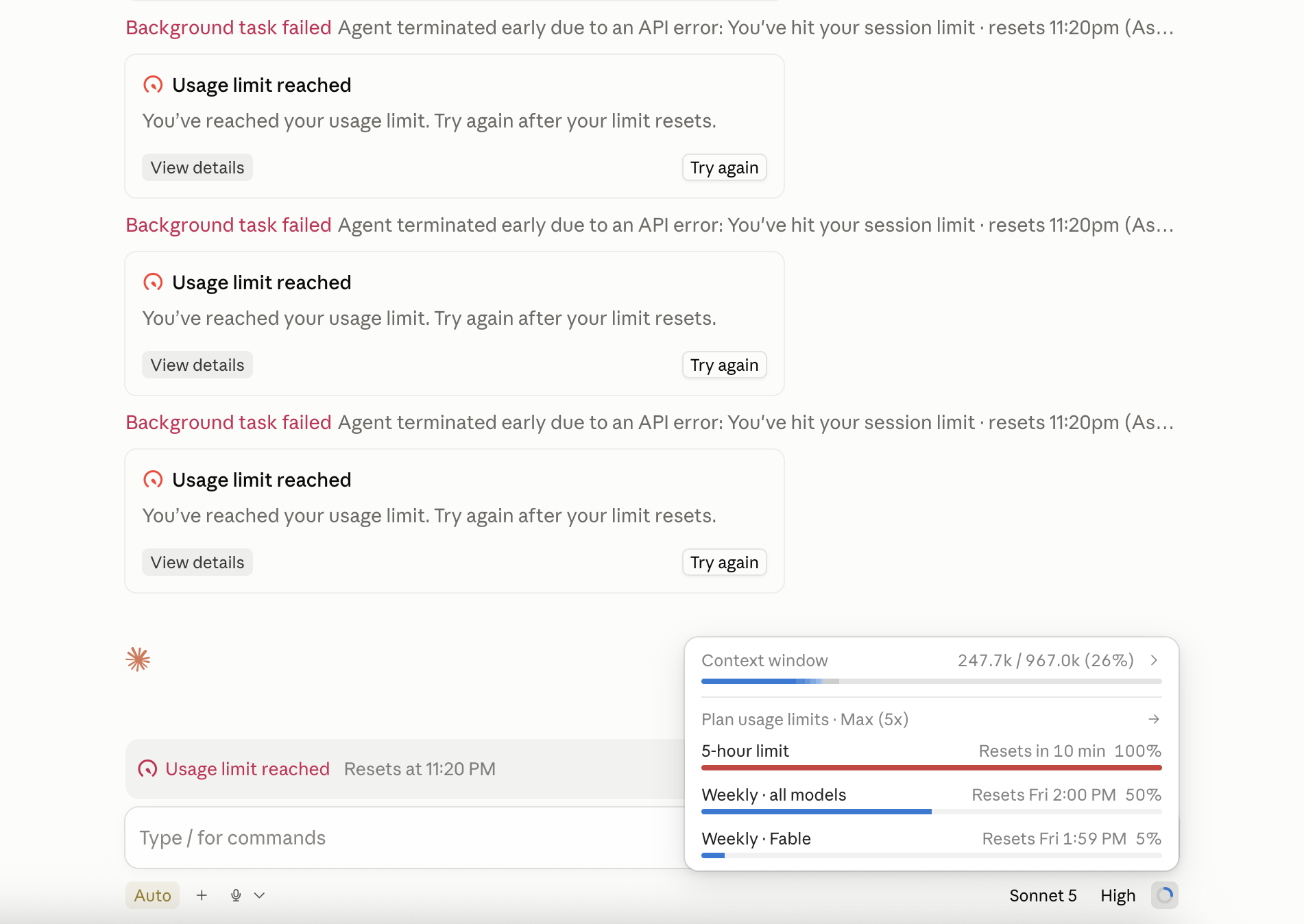
意思是:订阅额度分好几层算:5 小时短额度最容易碰到(重度用几小时就顶到),另外每周总额度和每周 Fable 额度是分开算的。任何一层顶到 100%,就会跳出「Usage limit reached」——完全正常,不是它坏了,也不是你的账号出问题。 What it means: your subscription quota is tracked in layers — a 5-hour short-term limit is the one you'll hit most (heavy use for a few hours gets there), plus a separate weekly total limit and weekly Fable limit. Whichever layer hits 100% triggers "Usage limit reached" — completely normal, nothing is broken and nothing is wrong with your account.
桌面版 App 的 Usage limit reached 画面
真实画面:Real screenshot: 右上角同时跳出好几条「Background task failed」——那是当时排定的背景/排程任务也一起被挡住了,不是分别坏掉三次,是同一个原因。真正要看的是最下面输入框上方那条「Usage limit reached · Resets at 11:20 PM」,以及右下角用量面板里变红的那条 5-hour limit。several "Background task failed" notices popping up at once — that's scheduled/background tasks getting blocked by the same limit, not three separate breakages. What actually matters is the "Usage limit reached · Resets at 11:20 PM" line right above the prompt box, and the 5-hour limit bar turning red in the usage panel bottom-right. 图片来源:永良的桌面版 App 截图(2026-08-09)Source: 永良's own desktop app screenshot (2026-08-09)
该怎么做:① 就等。画面写几点重置就是几点,到点自动恢复,不用重开 App、不用重新登录、更不用重新订阅。② 点右下角用量图标看清楚是哪一层顶到:只是 5-hour limit 顶到(最常见),通常几小时内自己恢复;连 Weekly 那条也顶到,代表这周额度用完了,要等到它写的那个星期几,那几天先省着用。③ 做完一件事,就跟它说「把这个 session 打包成项目记忆,我们开新的继续」(见上一条 FAQ),比让同一个对话一直拖下去更省额度。④ 如果天天卡到,考虑升级 Max 方案(USD $100/月起)。 What to do:① Just wait. Whatever time it shows is when it resets automatically — no need to reopen the app, log back in, or resubscribe.② Click the usage icon bottom-right to see exactly which layer is maxed: if it's just the 5-hour limit (most common), it usually clears within hours. If the weekly bar is also maxed, your week's quota is spent — pace yourself until the day it states.③ When you finish a task, say "package this session into project memory, let's continue in a new one" (see the FAQ above) — that saves noticeably more usage than letting one conversation run long.④ If this happens daily, consider the Max plan (from USD $100/month).
对话做久了,感觉它变慢、变笨、开始忘东西Long conversation feels slower, forgetful, or off-track
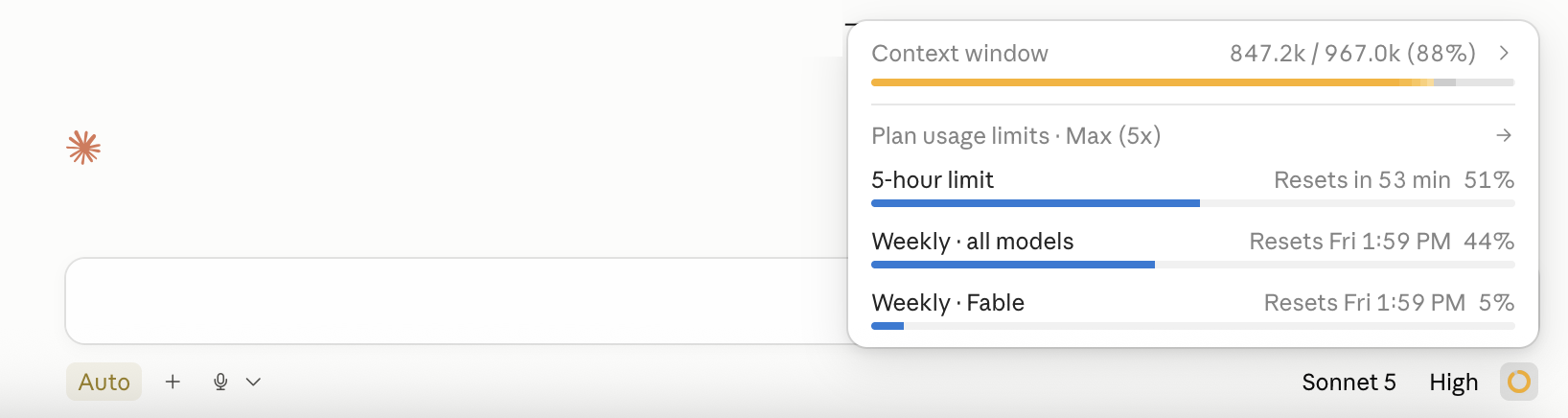
意思是:每次对话都有一个「可用容量」上限,叫 context window(上下文空间)——聊得越久、改的文件越多,用掉的就越多。用到 70-80% 以上,它要同时兼顾的东西太多,容易变慢、答非所问,甚至忘记你前面交代过的规则。 What it means: every conversation has a capacity limit called the context window — the longer you talk and the more files it touches, the more of that space gets used. Past 70-80%, it's juggling too much at once and can slow down, answer off-topic, or forget rules you set earlier.
桌面版 App 的 Context window 用量画面
真实画面:Real screenshot: 桌面版 App 右下角点一下用量图标,会跳出「Context window」这一条,例如 847.2k / 967.0k (88%)。看到这条超过 70%,就是时候做下面这一步了。click the usage icon bottom-right of the desktop app and a "Context window" line pops up, e.g. 847.2k / 967.0k (88%). Once that crosses 70%, it's time for the step below. 图片来源:永良的桌面版 App 截图(2026-08-09)Source: 永良's own desktop app screenshot (2026-08-09)

该怎么做(不是直接关掉重开):先跟它说:What to do (don't just close and reopen): say this first:

💬 跟它说Say this
把这个 session 做过的事,打包成项目记忆,我们再开新 session 继续。Package up everything we did in this session as project memory — we'll continue in a new session.
它会把这次做过的决定、改过的文件、还没做完的事写成一份记忆存起来。开新对话时直接说要接着哪个项目,它会先读这份记忆接上上下文,不用你重新解释一遍。 为什么不能直接清空对话重开、或让它一路跑到 100%?① 直接清空重开,这次对话讲过的重点、做过的决定全部不见,下次要重新交代一遍。② 放着让 context window 跑满,它会自动帮你砍掉早期内容,砍哪些不是你能控制的,容易把重要细节弄丢,而且这个过程本身也会让它当下的回答变得不准、变慢。③ 先打包再开新的,等于自己决定要留下什么——重要决定和上下文留住了,旧的琐碎细节丢掉,新对话轻装上阵,速度和准度都会更好。 It packages up the decisions made, files touched, and unfinished bits from this session into a memory it saves. In the new conversation, just say which project to continue and it reads that memory to pick up where you left off — no need to re-explain anything. Why not just wipe the conversation and start over, or let it run to 100%?① Wiping it clean loses everything — every point and decision from this conversation is gone, and you'd have to explain it all again next time.② letting the context window fill up makes it auto-trim older content for you — you don't control what gets cut, so important details can quietly disappear, and the trimming itself makes its answers less accurate and slower right when it happens.③ packaging first, then starting fresh means you decide what's worth keeping — the key decisions and context survive, the old clutter doesn't, and the new conversation starts light, faster and sharper.
Token 到底是怎么算的?我的额度是按什么算的?How exactly are tokens counted? What decides my usage?
Token 是什么:可以理解成「AI 读字、写字的最小单位」——不是照中文字数算,也不是照英文单词算,是它自己切字的方式,粗略换算大概 1 个 token ≈ 0.75 个英文单词,或约 1.3-2 个中文字(不同内容会有落差,仅供感觉参考)。会用掉额度的几件事:① 你打的字、丢给它的文件/网页内容——它读得越多,用得越多。② 它回你的字——想得越深、写得越长,用得越多;开「深度思考」这类进阶功能也会更耗。③ 对话拖得越久,用得越多——因为每次回你,它都要把这个对话前面讲过的全部内容重新看一遍,这就是第 7 章前一条 FAQ 教你「对话久了要打包记忆开新的」的原因。④ 用的模型不同耗用也不同——面板上 Opus / Sonnet / Haiku / Fable 是分开算的,模型越强通常越「贵」。这些用量算在哪:claude.ai 网页版、桌面 App 的 Chat / Cowork、还有 Claude Code——全部共用同一个额度池,不是分开算的,这边用多了那边也会跟着少。Anthropic 不会公开「一条消息精确扣多少 token」这种数字,画面上只会显示进度百分比,而且是两种不同的东西:📏 Context window(上一条 FAQ 那张截图)——这一个对话自己还能聊多深。⏱ 5 小时 / 每周用量(前面「额度用完了」那张截图)——整个账号这段时间还能用多少。别把这两个搞混:对话聊太深,是 context window 的事;一天用太猛,是额度的事。 What a token is: think of it as "the AI's smallest unit of reading/writing text" — not counted by Chinese characters or English words, but by how the model itself splits text. Roughly, 1 token ≈ 0.75 English words, or about 1.3-2 Chinese characters (varies by content — a rough feel, not exact). What burns through your usage:① what you type and any files/web content you hand it — the more it has to read, the more it uses.② what it writes back — deeper thinking and longer replies cost more; advanced features like extended thinking cost more too.③ the longer a conversation runs, the more it costs — every reply requires it to re-read everything said earlier in that conversation, which is exactly why the FAQ above teaches "package into memory, then start fresh" once a conversation runs long.④ different models cost differently — the usage panel tracks Opus / Sonnet / Haiku / Fable separately; stronger models are generally "pricier."Where this usage counts: claude.ai on the web, the desktop app's Chat / Cowork, and Claude Code — all draw from the same shared pool, not separate ones; using more on one means less left for the others. Anthropic doesn't publish an exact "tokens per message" number — the screen only shows a percentage, and it's actually two different things: 📏 Context window (the screenshot in the FAQ above) — how much deeper this one conversation can go.⏱ 5-hour / weekly usage (the screenshot in "hit my usage limit" above) — how much your whole account has left for that stretch of time.Don't mix them up: a conversation getting too deep is a context-window thing; using too much in a day is a usage-limit thing.
一个订阅可以装在两台电脑用吗?(公司一台、家里一台)Can one subscription be used on two computers? (one at office, one at home)
可以。Anthropic 的条款只禁止把账号分享给别人,没有限制你自己用几台设备——两台都是你自己的电脑,用同一组账号登入完全没问题,登入第二台也不会把第一台踢下线,两边可以同时在线。① 每台电脑都要各自装一次、登入一次——跟第 1 章的设定步骤一样,两台都走一遍,缺一不可。② 文件不会自动同步:对话记录会跨设备同步,但你选的文件夹、项目本身是各自独立的——公司电脑和家里电脑等于两个独立工作区。想在两边碰到同一批文件,自己把那个文件夹放进 Dropbox / OneDrive 这类会同步的地方。③ ⚠️ 真正要注意的是额度共用——上一条 FAQ 讲过,额度是算在账号层级,不是算在设备层级。两台电脑同一时段都开着重度使用,等于共用同一份 5 小时 / 每周额度,会比预期更快碰到「额度用完了」。 Yes. Anthropic's terms only prohibit sharing your account with someone else — there's no limit on how many devices you personally use. Since both computers are yours, logging into the same account on both is fine, and signing into the second one won't log you out of the first — both can stay signed in at once.① Each computer needs its own install and its own login — same setup as Chapter 1, done once per machine.② Files don't auto-sync: conversation history syncs across devices, but the folder/project you picked stays local to that machine — office and home computers are effectively two separate workspaces. If you need the same files on both, put that folder somewhere that syncs, like Dropbox or OneDrive.③ ⚠️ The real thing to watch is shared usage — as the FAQ above explains, usage is tracked at the account level, not per device. Running both computers hard at the same time draws from the same shared 5-hour / weekly pool, so you'll hit "usage limit reached" sooner than you'd expect.
它做出来的东西不是我要的What it produced isn't what I wanted
不用重头来。直接说哪里不对就行:「金额那栏要放右边」「颜色太浅,字要更大」「这不是我要的,我要的是……」。它会改在原来的基础上。诀窍:讲具体的、讲你看到的。不要说「不好看」,要说「标题太小、数字看不清楚」。 No need to start over. Just say what's wrong: "put the amount column on the right", "colours too light, bigger text", "not what I meant — I want…". It edits what's already there. Trick: be specific about what you're seeing. Not "it looks bad", but "the heading is too small and the numbers are hard to read".
它把我的文件改坏了 / 删错东西了It broke or deleted one of my files
先别慌。① 最快的一招:在 Claude Code 里连按两下 Esc(输入框要是空的),会跳出一个「回到之前」的选单,选一个时间点,就能把它这次改过的东西还原回去。② 如果这个文件夹有做过「文件时光机」(第 3 章场景 10),说「帮我回到上一个版本」。③ 都没有的话,趁同一个对话还没关,说「你刚才改了什么?帮我改回来」。预防最重要:重要文件夹一定先做时光机设置(10 分钟教程 →)。 Don't panic.① Fastest fix: press Esc twice in Claude Code (with an empty prompt) — a "restore" menu appears; pick a point in time and it puts things back.② if this folder has the "file time machine" (Chapter 3, Scenario 10), say "roll me back to the previous version".③ otherwise, while the same conversation is still open, say "what did you just change? Please undo it".Prevention matters most: set up the time machine on important folders first (10-min guide →).
它做事前一直问我 yes/no,要一直按吗?It keeps asking me yes/no before doing things — do I have to keep approving?
这是保护你的设计。凡是要改动或删除你的文件,它都会先问过(只是「看一看」文件不会问)。怎么选:跳出选单时,用 ↑ ↓ 方向键选「Yes」再按 Enter。建议:刚开始每一次都看清楚它要动哪个文件再按 yes,养出信任感;熟了之后,同一类操作它会记得你允许过。永远别在没看清楚的情况下一路按 yes。 That's a safety feature. Anything that changes or deletes your files gets confirmed first (simply reading a file doesn't prompt). How to answer: use the ↑ ↓ arrow keys to pick "Yes", then press Enter. Suggestion: early on, check which file it's about to touch before approving; once familiar, it remembers approvals for similar actions. Never approve blindly without reading.
我的公司资料安全吗?会不会外泄?Is my company data safe? Could it leak?
① Claude Code 跑在你自己的电脑上,文件一直放在你的硬盘,它不会把你的文件夹整个搬走。但要它帮你看一份文件,那份文件的内容会送到 Anthropic 的服务器才能被读懂——就像你把一份报表传给一个远端的助理看。所以:能给外部顾问看的,才丢进去。② 要改动、删除你的文件时,它一定会先问过你才动手(只是「看」文件不会问)。③ Anthropic 默认不会拿你的对话去训练模型,但账号里有一个「帮助改进 Claude」的开关——进 claude.ai → Settings → Privacy 确认它是关的。④ 你自己的责任:银行密码、身份证扫描件、员工薪资明细这类,别丢进去——就像你不会把它们随手交给一个新来的助理。 ① Claude Code runs on your own computer and your files stay on your drive — it doesn't move your folders anywhere. But for it to read a file, that file's contents are sent to Anthropic's servers to be understood — like emailing a report to a remote assistant. So: only put in what you'd be comfortable showing an outside consultant.② It always asks before changing or deleting your files (simply reading them doesn't prompt).③ Anthropic does not train on your conversations by default, but there's a "help improve Claude" toggle in your account — go to claude.ai → Settings → Privacy and confirm it's off.④ Your part: don't feed it bank passwords, ID scans or payroll details — the same way you wouldn't hand those to a brand-new assistant.
我可以叫员工也用吗?Can my staff use it too?
可以,但建议这样开始:① 你自己先用熟一个模块(例如看板)。② 挑一个学习意愿高的员工,让他用「培训资料库」那套。③ 每人一个自己的 Claude 账号(订阅是按人算的)。别一次全公司推——先做出一个成功案例,其他人才会跟。 Yes, but start like this:① get fluent with one module yourself (the dashboard, say).② pick one eager staff member and start them on the training library.③ each person needs their own Claude account (subscriptions are per person).Don't roll it out company-wide at once — create one success story first, and the rest will follow.
我忘了课堂上做过什么,想重头做一遍I've forgotten what we did in class and want to redo it
照这个顺序:第 1 章确认装好 → 第 2 章练熟三个动作 → 第 4 章重搭老板看板(最有感)→ 第 5 章培训资料库 → 第 3 章挑你最痛的场景来练。一天做一章就好,不用赶。 Follow this order: Chapter 1 to confirm the install → Chapter 2 to drill the three moves → Chapter 4 to rebuild the dashboard (most satisfying) → Chapter 5 for the training library → Chapter 3, picking whichever scenario hurts most. One chapter a day is plenty — no rush.
🆘 
还是卡住?课后 30 天内随时 WhatsApp 我们:+60 12-439 2289。讲清楚三件事就好:① 你想做什么② 你跟它说了什么③ 它回你什么(截图最快) Still stuck? WhatsApp us anytime within 30 days after class: +60 12-439 2289. Just tell us three things:① what you're trying to do② what you said to it③ what it replied (a screenshot is fastest)
CH 8

想学更深?官方资源Want to go deeper? Official resources

这里只放 Anthropic 官方的东西——最准、最不会过时,装不上、想查确切用法,一律以这些为准。 This is Anthropic's own material only — the most accurate, least likely to go stale. When in doubt about exact syntax or behaviour, these are the authority.

🎯 
只看一个的话,看这个:官方 30 分钟教学 → 《Mastering Claude Code in 30 minutes》。看完你就掌握了老板最常用的部分。 If you only watch one: the official 30-minute walkthrough → "Mastering Claude Code in 30 minutes" by Anthropic. It covers most of what an owner needs.

📘 官方资源(最权威,以这个为准)Official resources (the source of truth)

Claude Code 快速开始(官方简体中文文档)Claude Code Quickstart (official docs, also in Chinese)
Anthropic · code.claude.com
官方文档有完整中文版——安装、登录、常用命令全部讲清楚。装不上或想查确切写法,一律以这份为准。The official docs — install, sign-in and core commands, all spelled out. When in doubt about exact syntax, this is the authority.
★ 首选Top pick中文中/EN文档Docs
CLAUDE.md 记忆机制(官方中文说明)CLAUDE.md & Memory (official)
Anthropic · code.claude.com
第 6 章讲的「公司大脑」官方版详解:CLAUDE.md 该写什么、放哪里、怎么分层。想把系统做扎实,读这份。The official deep dive on the "company brain" from Chapter 6: what to write in CLAUDE.md, where it lives, how layers work.
中文中/EN文档Docs
Anthropic Academy(官方免费课程)Anthropic Academy (free official courses)
Anthropic · anthropic.skilljar.com
官方免费课程平台,有专门的「Claude Code 101」「Claude Code in Action」两门课——从日常怎么用,到长时间自动跑怎么放心交给它,一步一步教。Anthropic's own free course platform — includes dedicated "Claude Code 101" and "Claude Code in Action" courses, from everyday use to running longer hands-off sessions you can trust.
★ 首选Top pickEN官方课程Official courses
Mastering Claude Code in 30 minutes
Anthropic 官方频道official channel · YouTube · ~30 min
Claude Code 的创造者 Boris Cherny 亲自演示。想看「原厂标准用法」,这支最正统(英文,可开 YouTube 自动中文字幕)。Boris Cherny, who created Claude Code, demonstrates it himself. The most authoritative walkthrough there is.
★ 首选Top pickEN视频Video
Claude Code Best Practices
Anthropic Engineering
官方最有名的一篇实践文,CLAUDE.md 那套工作流就是从这里来的。想更进阶再看。The famous official practices article — the CLAUDE.md workflow originates here. Read it when you want to level up.
EN文章 · 进阶Article · Advanced
How Anthropic teams use Claude Code
Anthropic 官方博客official blog
官方公开他们法务、行销这些非技术部门怎么用 Claude Code。看完你会有一堆「原来还能这样用」的灵感。Anthropic shows how their legal, marketing and other non-technical teams use it. A goldmine of "oh, you can do that?" ideas.
EN文章Article
LOG

更新日志Changelog

这份笔记会持续升级。网址不变,回来就能看到新内容。 This playbook keeps improving. Same URL — come back anytime for new content.

📖 展开完整更新记录(30 条)📖 Expand full changelog (30 entries)
2026-08-10 · v1.29
第 1 章「进阶:想用终端机安装?」挪到 Typeless 卡片上面——原本放在下面,容易让人以为终端机安装教学是 Typeless 的操作步骤。Chapter 1's "Advanced: install via Terminal?" moved to above the Typeless card — it used to sit below, which read as if the terminal steps belonged to installing Typeless.
2026-08-10 · v1.28
顶部章节导航「8 · 资源库」改成「8 · 官方资源」,跟章节实际内容对上。Top nav label "8 · Resources" changed to "8 · Official Resources" to match what's actually in the chapter.
2026-08-10 · v1.27
第 8 章大瘦身:拿掉全部第三方教学(中文视频、英文视频、非程序员专文),只留 Anthropic 官方资源,新增官方免费课程平台 Anthropic Academy(Claude Code 101 / in Action 两门课)。章节标题和说明也改成「只放官方」的定位。Chapter 8 slimmed way down: removed every third-party tutorial (Chinese videos, English videos, non-developer articles) and kept only Anthropic's own official resources, adding Anthropic Academy — the official free course platform (Claude Code 101 / in Action). The chapter title and intro now reflect "official only."
2026-08-10 · v1.26
第 7 章救命锦囊每条问答加了编号,方便直接跟学员说「看第几题」;问答展开后,题目标题会变成青色,一眼看出哪条已经打开过。Every FAQ in Chapter 7's Rescue Kit now has a number, so you can just tell students "check question #X"; when an item is expanded, its title turns teal so you can see at a glance which ones you've already opened.
2026-08-10 · v1.25
救命锦囊(第 7 章)新增两条学员常问的:Token 到底怎么算(讲清楚什么会耗用额度、context window 跟 5 小时/每周额度是两回事)、一个订阅能不能装两台电脑(公司+家里)——查过 Anthropic 官方条款和帮助中心才写的,不是凭印象。Rescue Kit (Chapter 7) gains two commonly-asked questions: how tokens are actually counted (what burns usage, and why context window and the 5-hour/weekly limit are two different things), and can one subscription run on two computers (office + home) — both checked against Anthropic's official terms and help center, not written from memory.
2026-08-10 · v1.24
第 8 章「想再深入」加了雷蒙三十的一篇文章:Firecrawl、Playwright、WebFetch 三大抓取工具比较——想叫它稳定读懂网页、抓资料时查这篇。Chapter 8's "go deeper" section gains an article from 雷蒙三十: comparing the Firecrawl, Playwright, and WebFetch scraping tools — useful when you want it to reliably read a web page or pull data.
2026-08-10 · v1.23
第 1 章第 2 步「Windows 装 Git」提示旁加了一支 2 分钟 YouTube 教学影片连结,看不懂文字步骤的话直接照影片做。Chapter 1 Step 2's "install Git on Windows" note now links to a 2-minute YouTube walkthrough — for anyone who'd rather follow along on video than read the text steps.
2026-08-10 · v1.22
第 1 章「订阅 Claude Pro」补上 claude.com/pricing 官方订阅页真实截图,说清楚 Claude Code 至少要 Pro 方案才用得到(免费版没有),先订 Pro($20/月起)就够用,额度不够用再升级 Max,不用一开始就订最贵的。Chapter 1's "Subscribe to Claude Pro" step now includes a real screenshot of claude.com/pricing, spelling out that Claude Code needs at least the Pro plan (the free plan doesn't include it) — start with Pro (from $20/month), and only upgrade to Max later if you actually run out of usage.
2026-08-10 · v1.21
拿掉 Typeless 下载按钮那句「推荐连结」小字说明。Removed the small "referral link" note under the Typeless download button.
2026-08-10 · v1.20
第 1 章加了一个推荐工具:Typeless(语音打字神器)——讲话自动变成整理好的文字,比打字快 4 倍,也比手机内建语音输入干净。跟第 3 章场景 04、场景 11 这些「讲给它听」的用法特别配,请大家顺手装起来。Chapter 1 now recommends Typeless — a voice-to-text tool that turns speech into clean, structured text, 4x faster than typing and far cleaner than phone dictation. Pairs especially well with Chapter 3's "talk it through" scenarios (04 and 11) — please install it too.
2026-08-10 · v1.19
第 1 章「下载安装」补上 claude.ai 官方下载页真实截图——顺便让学员知道除了 Mac / Windows,其实也有 Linux 和手机版 iOS / Android 可以装。Chapter 1's "download & install" step now includes a real screenshot of claude.ai's official download page — also lets students know Linux and mobile (iOS / Android) versions exist too, beyond Mac / Windows.
2026-08-10 · v1.18
右上角那颗搜索按钮太容易被忽略——加了一颗右下角悬浮搜索按钮,带轻微脉冲提示「这里可以点」,每天第一次打开还会弹一下文字提示,点开跟原本搜索框功能完全一样。The search button up top was too easy to miss — added a floating search button bottom-right with a gentle pulse so it reads as clickable, plus a one-time-per-day text hint. Clicking it opens the exact same search you already have.
2026-08-10 · v1.17
搜索框加了🤖 AI 助手兜底——关键词搜不到、或想直接用自己的话问,点一下就把问题交给 AI,AI 只根据这份笔记回答,答不到就老实说没写到、叫你 WhatsApp 我们,不会瞎编。The search box now has a 🤖 AI Assistant fallback — when keyword search comes up empty, or you'd rather just ask in your own words, one click hands the question to AI. It only answers from this playbook's own content, and honestly says "not covered" (with our WhatsApp) instead of making things up.
2026-08-09 · v1.16
拿掉笔记里所有「打斜杠指令清空对话」的说法——这份笔记只教「跟它说人话」,不教命令行指令,改用「打包成记忆再开新对话」这个已经在教的说法来代替。Removed every mention of clearing a conversation via slash command from this playbook — it only teaches plain-language requests, not command-line syntax, and now points to the "package into memory, start fresh" phrasing already taught elsewhere instead.
2026-08-09 · v1.15
「它说我额度用完了」这条 FAQ 补上永良自己碰到的真实截图——右上角一排「Background task failed」加上「Usage limit reached」,说清楚这是正常现象、哪个才是真正要看的提示、该等多久、什么时候该换 Max 方案。学员一定会遇到,先教好免得慌。The "It says I've hit my usage limit" FAQ now includes a real screenshot 永良 actually hit — a stack of "Background task failed" notices plus "Usage limit reached" — explaining it's completely normal, which message actually matters, how long to wait, and when to consider Max. Every student runs into this eventually, better to prep them than let it spook them.
2026-08-09 · v1.14
第 0 章真实案例再加一个:她优势 She-Strengths——女性天赋优势测评,同样是真正在收费的产品,从零打造。现在一共 6 个案例。Added another real project to Chapter 0: She-Strengths — a women's strengths assessment, also a real paid product built from scratch. Now 6 examples in total.
2026-08-09 · v1.13
第 0 章的真实案例加了第 5 个,也是分量最重的一个:WINS Leads——一个真正在收费的 WhatsApp 询盘管理 SaaS,从零到上线全部用 Claude Code 打造,摆在案例第一位。Added a 5th, heaviest-hitting example to Chapter 0's real projects: WINS Leads — a real, paying WhatsApp lead-inbox SaaS, built from zero to launch entirely with Claude Code, now listed first.
2026-08-09 · v1.12
第 0 章加了 4 个永良自己用 Claude Code 做出来的真实上线项目(卡内基知识卡片、AI 订阅回报模拟器、真数据版图、五金钢铁行定价引擎)——不是截图不是 demo,是点开就能看的真网站,让你在动手前先信这东西真的能打。Chapter 0 now shows 4 real, live projects 永良 actually built with Claude Code (Dale Carnegie knowledge cards, an AI ROI simulator, a Malaysia data map, and a hardware-trade pricing engine) — not screenshots, not demos, real sites you can click into, so you believe this works before you even start setting it up.
2026-08-09 · v1.11
页面右上角新增 🔍 智能搜索——输入关键词直接搜整份笔记(章节、11 个场景、FAQ、资源库全部收录),结果会标出所在章节、高亮命中字词,点一下自动跳过去、展开、闪一下提示位置。也支持键盘:/ 打开、方向键选、Enter 跳转。Added a 🔍 smart search in the top-right corner — type a keyword to search the whole playbook (chapters, all 11 scenarios, FAQs, resources). Results show which chapter they're from, highlight the matched words, and clicking one jumps straight there, expanding it and flashing to show you where. Keyboard shortcuts work too: / to open, arrow keys to navigate, Enter to jump.
2026-08-09 · v1.10
救命锦囊(第 7 章)新增一条:对话做久了该怎么办——教你看桌面版 App 的 Context window 用量(配真实截图),超过 70% 先叫它把这个 session 打包成项目记忆,再开新对话接着做,而不是直接清空重开、或让它跑到 100% 自动砍内容。Rescue Kit (Chapter 7) gains a new entry: what to do when a conversation runs long — how to check the desktop app's Context window usage (with a real screenshot), and why, past 70%, you should have it package the session into project memory before starting fresh, instead of just wiping the conversation, or letting it auto-trim at 100%.
2026-08-09 · v1.9
第 6 章加了永良自己每天在用的 CLAUDE.md 心法——比公司规则更进阶一层,教它「怎么跟你思考」,可以直接复制去改成自己的语气。Chapter 6 now includes 永良's own CLAUDE.md, used daily — a level up from company rules, teaching it how to think alongside you; copy it and adapt to your own voice.
2026-08-09 · v1.8
补两点:第 6 章加了 CLAUDE.md 别写太长 的真实案例(768 行改回 120 行反而更准);第 4 章老板看板加了一句话记开销的延伸玩法。Added two things: Chapter 6 now has a real example of why CLAUDE.md should stay short (trimming 768 lines back to 120 made it more accurate); Chapter 4's dashboard section has a one-sentence expense logging extension.
2026-08-09 · v1.7
排版修正:全篇「①②③…」编号要点以前挤成一整段,现在都各自独立成行,救命锦囊(第 7 章)那几条 FAQ 最明显,一眼就能扫到重点。Layout fix: numbered points (①②③…) that used to run together in one solid paragraph now each get their own line — most noticeable in the Rescue Kit (Chapter 7) FAQs, which are now much easier to scan.
2026-08-09 · v1.6
补三个小技巧:第 6 章加了写需求要具体的示范句;场景 02 加了收据自动整理+寄邮件的延伸玩法;场景 09 加了叫它自己打开浏览器测试的省心一句话。Added three small tips: Chapter 6 now shows a be specific example; Scenario 02 has a receipt auto-sort + email extension; Scenario 09 has a have it self-test in a browser shortcut.
2026-08-09 · v1.5
补上装 Git / Homebrew 的手把手步骤:Mac 第一次在文件夹里工作时,系统会跳出「需要 command line developer tools」的窗口(第 1 章第 2 步已标注);干活途中它提到 brew/npm 要装工具时按 Yes 就好(新增提示);「进阶」折叠区里加了一段可选的手动预装 Git + Homebrew 教程,含完整指令。Added step-by-step Git / Homebrew instructions: on Mac, the first time you work in a folder, the system prompts for the command line developer tools (now noted in Chapter 1, Step 2); when it mentions installing something via brew/npm mid-task, just click Yes (new reassurance note); the "Advanced" section now has an optional manual Git + Homebrew walkthrough with full commands.
2026-08-09 · v1.4
换成永良本人桌面版 App 的最新实拍截图(Home / Code / Cowork)——之前那批是网上扒的官方教程图,界面已经旧了(顶部三分页变成了左侧 Home/Code + 输入框内 Chat/Cowork 切换)。也拿掉了一张来源不明确对不上新版界面的第三方 diff 截图。Swapped in 永良's own up-to-date screenshots of the desktop app (Home / Code / Cowork) — the previous batch was scraped from an official tutorial page and had gone stale (top three-tab layout is now a left Home/Code split with Chat/Cowork inside the prompt box). Also removed a third-party diff screenshot that no longer matched the current UI.
2026-08-09 · v1.3
补上真实截图(后于 v1.4 被替换为最新版本)。Added real screenshots (superseded by v1.4's updated versions).
2026-08-09 · v1.2
第 1、2 章改版:安装设定以桌面版 App 为主线——下载、双击、拖进 Applications/一路 Next,全程不用碰终端机,Windows 也不用再分 CMD 和 PowerShell。原本的终端机安装方式收进「⌨️ 进阶」折叠区,给想设定 24 小时无人值守自动化的人用。每天怎么开始用也同步改成 sidebar 点一下继续 / 开新对话的桌面流程。Chapters 1–2 redesigned: setup now leads with the desktop app — download, double-click, drag into Applications / click Next, no terminal at all, and Windows users no longer need to tell CMD from PowerShell. The old terminal install now lives in a collapsed "⌨️ Advanced" section for anyone setting up 24/7 unattended automation. Daily use updated to match: click a sidebar conversation to continue, or start a new one.
2026-08-08 · v1.1
审核后补强:讲清楚资料到底安不安全(哪些会送到服务器、哪些操作会先问你);录音要先转成文字它才读得懂;补上做好的文件在哪里、怎么打开;整理文件夹前先备份的提醒;安装完怎么确认装好了;连按两下 Esc 可以还原刚才的改动;培训资料库怎么交到新人手上。Post-review update: clarified what actually happens to your data (what gets sent to the servers, what it asks you first); recordings must be turned into text first; added where generated files land and how to open them; a back up first warning before bulk file tidying; how to verify the install worked; press Esc twice to undo; and how to hand the training library to a new hire.
2026-08-08
第一版上线:安装设定、每日使用、11 个场景、老板看板、培训资料库、OS 框架、救命锦囊、全球资源库。v1 published: setup, daily use, 11 scenarios, boss dashboard, training library, OS framework, rescue kit, curated resources.
💡 
想看到什么内容?你在用的过程中卡在哪、想要哪个场景的详细教程,WhatsApp 告诉我们——我们会把它写进这份笔记,大家一起受益。 What would you like to see here? Tell us where you get stuck or which scenario needs a deeper guide — we'll write it into this playbook for everyone.